- Quick Answer: How Do You Back Up Key Material With a Luna Backup HSM?
- What Is a Luna Backup HSM, and Why Do You Need One?
- Which Luna Backup HSM Generation Are You Running?
- How Does Authentication Work: PED-Based vs. Password-Based HSMs?
- What Do You Need Before You Begin a Backup or Restore?
- How Do You Back Up and Restore Key Material With a PED-Based Luna HSM?
- How Do You Back Up and Restore Key Material With a Password-Based Luna HSM?
- What Happens If a Backup or Restore Fails?
- Decision Table: Choosing the Right Backup and Authentication Model
- Numbered Workflow: Steps to Deploy a Backup HSM Successfully
- What Are the Limitations of Using a Luna Backup HSM?
- Our Recommendation
- Conclusion
- Frequently Asked Questions
A network-attached Luna HSM protects the keys your applications use every day, but it is still a single piece of hardware. If that appliance fails, is stolen, or needs to be decommissioned, every key inside it needs a way to move to new hardware without ever existing in the clear outside a validated cryptographic boundary. A Luna Backup HSM is the device built for exactly that job: a portable, FIPS-validated token that stores an encrypted copy of your partitions so you can restore them to a replacement appliance, move them to a new data center, or satisfy a disaster recovery requirement.
This guide walks through backing up and restoring key material with a Luna 7 Backup HSM, covering both of Thales’s supported authentication models (PED-based and password-based), the prerequisites you need before you start, what to do when a backup or restore fails, and where the classic USB backup device stands in Thales’s current product lifecycle. That last point matters more than it used to: as covered below, the original Luna Backup HSM (G5) reaches full end of life on September 30, 2026.
Quick Answer: How Do You Back Up Key Material With a Luna Backup HSM?
Backing up key material with a Luna Backup HSM means cloning an application partition from a network-attached Luna HSM onto a smaller, portable Luna Backup HSM that shares the same cryptographic domain, so the keys can later be restored to the same appliance or a replacement one. It matters because keys generated inside an HSM are, by design, never supposed to leave that validated boundary in plaintext; the backup HSM is the only supported way to move them without breaking that guarantee. The recommended first action is to confirm which authentication model your source partition uses (PED-based or password-based) and which generation of backup hardware you have on hand, since the commands, the key material you need, and the hardware’s remaining support window all depend on that answer.
- PED-based partitions require a Pin Entry Device (PED) and a quorum of physical PED keys: domain (red), Crypto Officer (black), Security Officer (blue), and Remote PED Vector (orange).
- Password-based partitions use role passwords and a shared domain string instead of physical keys.
- Hardware generation determines your support timeline: the classic Luna Backup HSM (G5) is end-of-life on September 30, 2026, and the current Luna Backup HSM 7 line (B700/B750/B790) is what Thales now ships.
What Is a Luna Backup HSM, and Why Do You Need One?
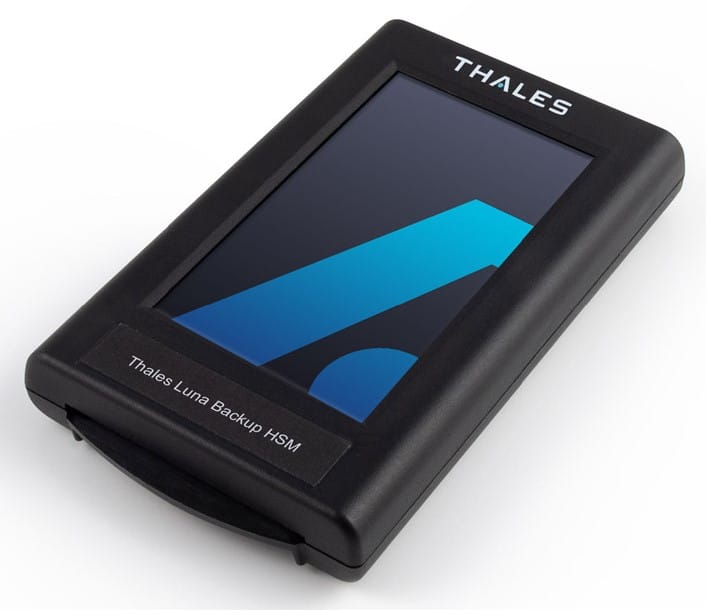
A Luna Backup HSM is a small, USB-attached hardware security module built for one purpose: holding an encrypted, offline copy of the partitions that live on a network-attached Luna HSM. It is not a production cryptographic engine. It does not serve encrypt, decrypt, sign, or verify requests to your applications. Its only job is to store cloned key material securely until you need to restore it, which is why it can be disconnected, stored in a safe, or physically transported between sites.
Organizations rely on backup HSMs for three recurring scenarios. The first is disaster recovery: if a production Luna appliance is destroyed or fails beyond repair, the backup HSM lets you restore every key to a replacement unit rather than regenerating key material and re-issuing every certificate or re-wrapping every encrypted record that depended on it. The second is hardware migration: moving from one Luna appliance to another, whether for a data center move, a lease refresh, or an end-of-life hardware swap, without a period where keys exist outside a validated HSM boundary. The third is offline key custody: some compliance programs require a copy of root or highly sensitive keys to exist outside the always-connected production appliance, and a backup HSM satisfies that without exporting the key material in the clear.
A backup HSM is not a substitute for high availability. Cloning a partition to a backup device gives you durability, meaning the key material survives even if the source appliance is lost, but it does not give you uptime, since restoring from a backup HSM is a manual, offline operation. If your requirement is continuous availability during a hardware failure, that is an HA group of network-attached Luna HSMs, not a backup HSM. See our guide on HSM clustering and high availability for that architecture.
Which Luna Backup HSM Generation Are You Running?
Before you touch a single command, confirm which generation of backup hardware you actually have, since Thales has moved through several revisions and the oldest one is running out the clock on vendor support.
| Generation | Connection | Lifecycle status (as of September 2026) |
|---|---|---|
| Luna Backup HSM (G5) | USB, external Luna PED required | End of sale since September 30, 2024; full end of life, meaning no more technical support, RMA, repairs, or firmware updates, on September 30, 2026 |
| Luna Backup HSM 7, revision 1 (B700 / B750 / B790, firmware 7.3.2 or 7.7.1) | USB, external Luna PED required | Last time buy was December 31, 2025; still supported, but new purchases should move to revision 2 |
| Luna Backup HSM 7, revision 2 (B700 / B750 / B790, available since August 2022) | USB-C, supports direct PED key insertion without a separate remote PED unit | Current shipping generation |
The three current-generation models differ only in onboard storage: the B700 holds 32 MB, the B750 holds 128 MB, and the B790 holds 256 MB, with all three supporting up to 100 stored partitions. The commands in this guide apply to the classic G5 USB workflow, which is still the most common deployment in the field, but the same LunaCM and LunaSH command structure carries forward to the 7-series hardware. If you are still running a G5 backup HSM, start planning your migration to a revision 2 device or to Thales’s cloud-based Luna HSM Backup Service now. The Luna Network HSM 7 appliance itself, the source of the partitions you are backing up, is not affected by this end-of-life notice.
How Does Authentication Work: PED-Based vs. Password-Based HSMs?
Every Luna partition is initialized with one of two authentication models, and the model on your source partition determines every step that follows, since you cannot mix them during a clone.
PED Key Roles and Colors
PED-based, or multifactor quorum-authenticated, HSMs protect every role with a physical PED key rather than a typed password, entered through a Pin Entry Device (PED) for local or remote administration. See our guide on Luna PED key best practices for custodian and storage guidance beyond what is covered here. Each role uses its own key color:
| PED key color | Role | Purpose |
|---|---|---|
| Red | Domain | Shared cryptographic domain key; the source and backup HSM must share the same domain key before a partition can be cloned between them. |
| Black | Crypto Officer (CO) | Manages cryptographic objects, meaning keys and certificates, within a partition. |
| Blue | Security Officer (SO) | Manages HSM-level policy and security settings. |
| Orange | Remote PED Vector (RPV) | Authorizes a remote PED connection to the HSM over the network instead of a directly attached local PED. |
Treat orange RPV keys with extra care on a backup HSM specifically. On a network-attached HSM, the Security Officer can regenerate a lost RPV key without touching the stored key material. On a backup HSM, losing every copy of the orange key is equivalent to losing every partition stored on that device, since there is no equivalent recovery path. Generate more than one orange key for every backup HSM, store the copies separately, and never reuse the RPV keys from your production network HSM on a backup device.
Password-Based Authentication Roles
Password-based HSMs protect the same set of roles with typed passwords instead of physical keys. The Security Officer password governs HSM-level policy, the Crypto Officer password governs the cryptographic objects inside a partition, and a shared domain string takes the place of the red domain PED key, still required to match between the source and backup HSM before cloning will succeed.
What Do You Need Before You Begin a Backup or Restore?
- Administrative access to LunaCM on a client workstation connected to the source Luna appliance, and to LunaSH on the appliance itself.
- The backup HSM and, for PED-based partitions, a Luna PED, connected to USB ports on the appliance other than the port on the PCIe HSM card.
- A workstation connected to the appliance’s serial console port with a serial-to-USB cable, for the LunaSH session used to run backup and restore commands. Our video walkthrough of the physical connection covers this cabling step visually.
- Every role credential involved: for PED-based partitions, the domain (red), Crypto Officer (black), and Security Officer (blue) PED keys, plus new orange RPV keys for the backup HSM; for password-based partitions, the Crypto Officer and Security Officer passwords and the shared domain string.
- Confirmation of whether the target environment requires FIPS 140 compliance, since that policy has to be set on the backup HSM before you clone a FIPS-configured partition to it.
Treat Every Backup as a Key Ceremony
A PED-based backup is, functionally, a small key ceremony: it requires multiple named custodians to appear in person with their individual PED keys, and it moves live key material between hardware boundaries. Run it like one. Schedule the custodians in advance, log who inserted which key and when, record the serial numbers of both the source and backup HSM, and keep that log with your other key management records rather than only in the terminal history. If your compliance program already has a documented key ceremony procedure for root CA key generation, extend the same custodian and witness structure to backup HSM operations instead of treating them as routine IT maintenance.
How Do You Back Up and Restore Key Material With a PED-Based Luna HSM?
Backing Up via the Appliance USB Port
- Remove the backup HSM from secure transport mode. Connect to a client workstation running LunaCM and run:
lunacm:> slot set -slot <slot_id>
Note: use the admin partition’s slot ID.
lunacm:> stm recover -randomuserstring <string>
Note: check your email for a message from Thales containing the string.
- Connect the backup HSM and PED to USB ports on the appliance other than the port on the PCIe card, as shown below.

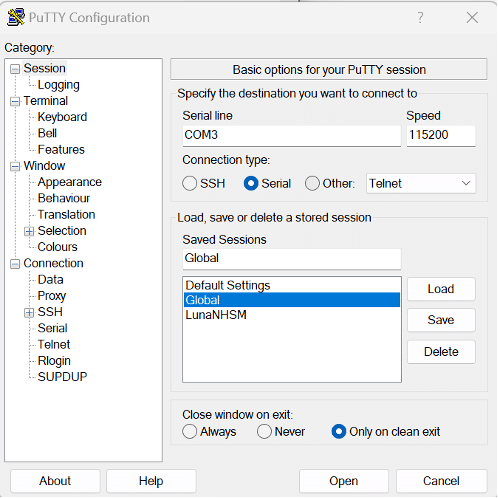
- Connect a workstation to the appliance’s serial console port with a serial-to-USB cable, shown highlighted in blue above. Start a PuTTY session (referred to below as LunaSH) using connection type serial over the corresponding COM port; check Device Manager if you need to confirm the port number.
- In LunaSH, list the connected backup devices and note the backup HSM serial number returned:
lunash:> token backup list
- Establish a connection between the appliance’s local remote PED server instance and the remote PED:
lunash:> hsm ped connect -ip 127.0.0.1 -serial <backup_hsm_serial_number>
- LunaSH returns a one-time password to establish a secure connection before initializing an orange RPV key. Enter that password on the PED, then create the RPV key. Create more than one orange key here, since they are difficult to regenerate on a backup HSM, unlike on a network-attached HSM.
lunash:> hsm ped vector init -serial <backup_hsm_serial_number>
- Initialize the backup HSM. You must reuse the domain (red) key from the source HSM, or cloning will fail; reusing the Security Officer (blue) key is optional but simpler.
lunash:> token backup init -label <backup_hsm_label> -serial <backup_hsm_serial_number>
- If the target environment requires FIPS compliance and it is already configured on the source network-attached HSM, complete the steps in Enabling FIPS Compliance on the Backup HSM before continuing.
- List the application partitions on the source HSM and note the names of the partitions you want to clone:
lunash:> partition list
- Clone the partition to the backup HSM for the first time:
lunash:> partition backup -partition <source_partition_label> -serial <backup_hsm_serial_number>
When prompted, insert PED keys in this order:
- The new or reused partition Security Officer (blue) key, to initialize the backup partition.
- The partition Security Officer (blue) key you just created for the backup partition, to log in.
- The new or reused Crypto Officer (black) key, to initialize the CO role on the backup partition.
- The Domain (red) key from the source partition, to initialize the domain on the backup.
- The Crypto Officer (black) key you just created for the backup partition, to log in.
Enabling FIPS Compliance on the Backup HSM
- In LunaCM, log in with the Security Officer role:
lunacm:> role login -name so
- Set the FIPS compliance policy and confirm it applied:
lunacm:> hsm changehsmpolicy -policy 55 -value 1
lunacm:> hsm showinfo
Restoring via the Appliance USB Port
- Connect the backup HSM and PED to USB ports on the appliance other than the port on the PCIe card, the same as during backup.
- Connect a workstation to the serial console port and start a LunaSH session, the same as during backup.
- List the connected backup devices and note the backup HSM serial number:
lunash:> token backup list
- List the application partitions on the target appliance and note the partition you are restoring to:
lunash:> partition list
- List the existing backups on the backup HSM and note the partition you want to restore from:
lunash:> token backup partition list -serial <backup_hsm_serial_number>
- Restore the partition. Use
-addto add content without removing what is already on the target partition, or-replaceto overwrite it:lunash:> partition restore -partition <target_user_partition_label> -tokenpar <source_backup_partition_label> -serial <backup_hsm_serial_number> {-add | -replace}
- If the target partition is already activated, you only need the Crypto Officer challenge secret. Otherwise, insert PED keys in this order:
- The RPV (orange) key for the target HSM, to initiate the remote connection.
- The Crypto Officer (black) key for the target partition.
- The RPV (orange) key for the backup HSM.
- Disconnect the PED:
lunash:> hsm ped disconnect -serial <backup_hsm_serial_number>
How Do You Back Up and Restore Key Material With a Password-Based Luna HSM?
Backing Up via the Appliance USB Port
- Remove the backup HSM from secure transport mode. In LunaCM:
lunacm:> slot set -slot <slot_id>
Note: use the admin partition’s slot ID.
lunacm:> stm recover -randomuserstring <string>
Note: check your email for a message from Thales containing the string.
- Connect the backup HSM to a USB port on the appliance other than the port on the PCIe card, the same as the PED-based procedure above.
- Connect a workstation to the serial console port and start a LunaSH session, the same as the PED-based procedure above.
- List the connected backup devices and note the backup HSM serial number:
lunash:> token backup list
- Initialize the backup HSM:
lunash:> token backup init -label <backup_hsm_label> -serial <backup_hsm_serial_number>
- If the target environment requires FIPS compliance and it is already configured on the source network-attached HSM, complete the FIPS compliance steps below before continuing.
- List the application partitions on the source HSM and note the partitions you want to clone:
lunash:> partition list
- Clone the partition to the backup HSM for the first time:
lunash:> partition backup -partition <source_partition_label> -serial <backup_hsm_serial_number>
When prompted, enter the Crypto Officer password for the source partition, then the Security Officer password for the backup HSM, then a domain string for the new partition; this string must match your existing domain string for future backups to succeed.
Enabling FIPS Compliance on the Backup HSM
- In LunaCM, log in with the Security Officer role:
lunacm:> role login -name so
- Set the FIPS compliance policy and confirm it applied:
lunacm:> hsm changehsmpolicy -policy 55 -value 1
lunacm:> hsm showinfo
Restoring via the Appliance USB Port
- Connect the backup HSM to a USB port on the appliance other than the port on the PCIe card.
- Connect a workstation to the serial console port and start a LunaSH session.
- List the connected backup devices and note the backup HSM serial number:
lunash:> token backup list
- List the application partitions on the target appliance and note the partition you are restoring to:
lunash:> partition list
- List the existing backups on the backup HSM and note the partition you want to restore from:
lunash:> token backup partition list -serial <backup_hsm_serial_number>
- Restore the partition. Use
-addto add content without removing what is already on the target partition, or-replaceto overwrite it:lunash:> partition restore -partition <target_user_partition_label> -tokenpar <source_backup_partition_label> -serial <backup_hsm_serial_number> {-add | -replace}
- Enter the Crypto Officer password for the target partition, then the Crypto Officer password for the backup partition, in that order.
What Happens If a Backup or Restore Fails?
Most backup and restore failures trace back to a small set of causes. Knowing them before you start saves a wasted key ceremony.
- Domain mismatch: cloning fails outright if the backup HSM was not initialized with the same domain (red) key or domain string as the source partition. There is no override; the domain has to match.
- Lost RPV key: if every orange PED key for a given backup HSM is lost, the partitions stored on that device cannot be recovered. This is the single highest-impact failure mode described in this guide, which is why multiple orange keys, stored separately, are non-negotiable.
- FIPS policy set too late: enabling FIPS compliance on the backup HSM after a non-FIPS clone already exists can leave the partition in a state that does not match the source. Set the policy before the first clone whenever the source is FIPS-configured.
- Firmware mismatch: restoring between HSMs running significantly different firmware versions can fail or behave unexpectedly. Keep source and backup HSM firmware within the version ranges Thales documents as compatible for your hardware generation.
- PED communication timeout: a remote PED session that times out mid-operation usually means the one-time password expired before it was entered, or the network path between the appliance and the PED was interrupted. Reconnect with
hsm ped connectand retry with a fresh password. - Wrong USB port: connecting the backup HSM or PED to the USB port on the PCIe HSM card instead of a standard appliance USB port is a common setup mistake that prevents the device from being recognized at all.
Decision Table: Choosing the Right Backup and Authentication Model
| Situation | Recommended approach |
|---|---|
| Regulated environment requiring FIPS 140 validation and documented custodian control | PED-based authentication with a quorum of named custodians, set the FIPS policy before the first clone |
| Smaller team without dedicated PED hardware or custodian rotation | Password-based authentication, with role passwords managed through your existing secrets process |
| Still running a Luna Backup HSM (G5) | Begin migration planning now; full vendor support ends September 30, 2026 |
| Buying new backup hardware today | Luna Backup HSM 7, revision 2, for the USB-C direct PED connection; revision 1 stock is being phased out after its December 2025 last time buy |
| Distributed sites without local PED custodians | Evaluate Thales’s cloud-based Luna HSM Backup Service instead of shipping a physical device between locations |
| Need for continuous uptime during a hardware failure, not just key durability | An HA group of network-attached Luna HSMs; a backup HSM alone does not provide failover |
Numbered Workflow: Steps to Deploy a Backup HSM Successfully
- Confirm the authentication model (PED-based or password-based) of every partition you need to protect.
- Confirm the generation of backup hardware you are deploying and check it against the lifecycle table above.
- Gather every required credential: PED keys and a PED, or role passwords and the domain string, plus new orange RPV keys if the model is PED-based.
- Schedule the operation as a key ceremony, with named custodians and a witness log, if the environment is regulated.
- Remove the backup HSM from secure transport mode and connect it, along with the PED if applicable, to the appliance.
- Set the FIPS compliance policy on the backup HSM first, if the source partition requires it.
- Initialize the backup HSM and clone each target partition, following the correct PED key or password sequence for your authentication model.
- Test a restore to a non-production partition before you rely on the backup in a real incident.
What Are the Limitations of Using a Luna Backup HSM?
- Capacity ceilings: current-generation devices top out at 256 MB of storage and 100 partitions per device, which can matter for large multi-tenant environments.
- No availability benefit: a backup HSM protects key material, not uptime; it does not replace an HA cluster.
- Irrecoverable RPV loss: unlike a network-attached HSM, a backup HSM has no supported path to regenerate a lost RPV key, making key custody discipline mandatory rather than optional.
- Domain lock-in: a backup HSM can only restore to a partition sharing its original cryptographic domain, so domain key management has to be planned before the first backup, not after.
- Manual, offline process: both backup and restore require physical access, correct credentials, and a person following the procedure; they are not automated or remotely triggerable in the way a software backup job is.
- Vendor lifecycle exposure: as the G5 end-of-life shows, backup hardware has its own support clock that runs independently of the appliance it protects.
Our Recommendation
Treat backup HSM operations as key management infrastructure, not a one-time setup task you complete during initial deployment and forget. In practice, that means three things. First, if you are still on a Luna Backup HSM (G5), start the migration to a revision 2 B-series device or Thales’s cloud backup service before September 30, 2026; waiting until support actually ends leaves you with no vendor path if the hardware fails during the transition. Second, test a restore on a schedule, not just after a backup, since an untested backup is only a hypothesis about your recovery capability. Third, fold backup HSM inventory into your broader cryptographic asset tracking rather than managing it in a spreadsheet separate from your certificates and other keys; our cryptographic discovery guide covers how to build that inventory, and CBOM Secure can track which partitions have a current, tested backup and which do not. If you are planning a broader HSM refresh alongside a post-quantum migration, our guide on migrating between HSM vendors during the PQC refresh covers how backup and key migration planning changes when the target algorithms change too.
Conclusion
A Luna Backup HSM exists so that a hardware failure, a data center move, or a compliance requirement never forces you to choose between losing key material and exposing it outside a validated boundary. Whether you authenticate with PED keys or passwords, the discipline that matters most is the same: match the domain before you clone, protect the orange RPV keys like the single point of failure they are, set FIPS policy before the first backup if you need it, and test restores before you need them for real. If you are also managing the appliances these backups protect, our guides on PKI disaster recovery and HSM deployment cover the surrounding architecture, and Encryption Consulting’s HSM-as-a-Service team can help you design and operate the backup and key ceremony process end to end if you would rather not run it in-house; see our HSM-as-a-Service case study for an example of that engagement in practice.
Frequently Asked Questions
Is the Luna Backup HSM (G5) still supported?
Partially, and not for much longer. Thales stopped selling the Luna Backup HSM (G5) on September 30, 2024, and full end of life, meaning no more technical support, RMA, repairs, or firmware updates, arrives on September 30, 2026. If you have not started planning a move to the current Backup HSM 7 line or a cloud-based backup service, start now.
What is the difference between a backup HSM and a network-attached HSM?
A network-attached Luna HSM is a production appliance that performs live cryptographic operations, encrypt, decrypt, sign, and verify, for your applications over the network. A backup HSM is a small USB device with no network interface and no production role; it only stores an encrypted copy of partitions cloned from a network-attached HSM so they can be restored later.
Can I restore a password-based partition using a PED-based backup HSM, or the reverse?
No. A partition’s authentication model is set at initialization and has to match between the source and backup HSM for a clone or restore to succeed. Migrating a partition from one authentication model to the other requires re-initializing it under the new model, not a direct backup and restore.
How many partitions can a Luna Backup HSM store?
The current B700, B750, and B790 models all support up to 100 stored partitions, differing only in total storage capacity: 32 MB, 128 MB, and 256 MB respectively. Actual partition count in practice depends on how much key material each partition holds.
Does backing up to a Backup HSM replace the need for an HA cluster?
No. A backup HSM protects against permanently losing key material; it does not keep your applications online while a production HSM is down. If continuous availability during a hardware failure is the requirement, that calls for an HA group of network-attached Luna HSMs in addition to, not instead of, a backup HSM.
- Quick Answer: How Do You Back Up Key Material With a Luna Backup HSM?
- What Is a Luna Backup HSM, and Why Do You Need One?
- Which Luna Backup HSM Generation Are You Running?
- How Does Authentication Work: PED-Based vs. Password-Based HSMs?
- What Do You Need Before You Begin a Backup or Restore?
- How Do You Back Up and Restore Key Material With a PED-Based Luna HSM?
- How Do You Back Up and Restore Key Material With a Password-Based Luna HSM?
- What Happens If a Backup or Restore Fails?
- Decision Table: Choosing the Right Backup and Authentication Model
- Numbered Workflow: Steps to Deploy a Backup HSM Successfully
- What Are the Limitations of Using a Luna Backup HSM?
- Our Recommendation
- Conclusion
- Frequently Asked Questions
- Is the Luna Backup HSM (G5) still supported?
- What is the difference between a backup HSM and a network-attached HSM?
- Can I restore a password-based partition using a PED-based backup HSM, or the reverse?
- How many partitions can a Luna Backup HSM store?
- Does backing up to a Backup HSM replace the need for an HA cluster?