
In the modern world, Google Play App is widely used by developers to publish their applications with Google Android. However, when it comes to publishing it, a few nuances must be kept in mind for better security. One such is a self-signed certificate.
Self-signed certificates are generally not used in the TLS world (except for testing purposes). However, in codesigning, it is still used. Especially in the Android world, where the self-signed key is used for the “upload key .”Let’s explore how we securely generate the “upload key” but before it…
Why a standard code signing certificate fails for Play App Signing: Google Play requires the upload key certificate to carry specific Key Usage (Digital Signature) and Extended Key Usage (Code Signing) extensions, per RFC 5280. A self-signed certificate generated without explicitly setting these extensions is rejected by the Play Console even though it’s cryptographically valid, the fix is adding the extensions at generation time, not switching certificate types.
Key Takeaways
- Play App Signing uses two distinct keys: the upload key (self-signed, used only to authenticate your upload to Google) and the app signing key (which Google manages and uses to actually sign the distributed APK). This post covers only the upload key.
- Using a separate upload key rather than reusing your app signing key limits the blast radius of a leak: a compromised upload key can’t be used to forge APKs impersonating your app, since Google’s own signing key is what actually matters for distribution.
- For the general certificate and PKCS#11/HSM concepts referenced here, see Code Signing 101: Locking Down Your Software Supply Chain.
What is Upload Key?
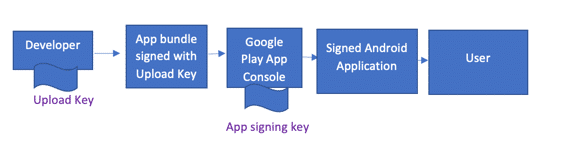
Upload key is the new method of uploading APKs (Android Package Kit) to Google Play App Signing for publishing it to users. The upload key establishes trust between your enterprise and Google to upload an Android bundle. The Android bundle must be signed using the upload key before uploading it to the Play Console. It is entirely different from the app signing key used to sign the android bundle for distribution.
Thus, Play App Signing uses two keys: the app signing key and the upload key. We will be referencing only the Upload Key for this article.
Below is a figure to illustrate the signing flow in Android:
Why use Upload Key?
If you continue using your app signing key for your releases, you run the risk that the key might leak due to human error. However, suppose you use a separate upload key for signing the binaries you produce on your machine.
In that case, even if the upload key is compromised, it cannot be used by a malicious third party to create APKs impersonating your own. As a result, using a separate upload key is considered a best practice.
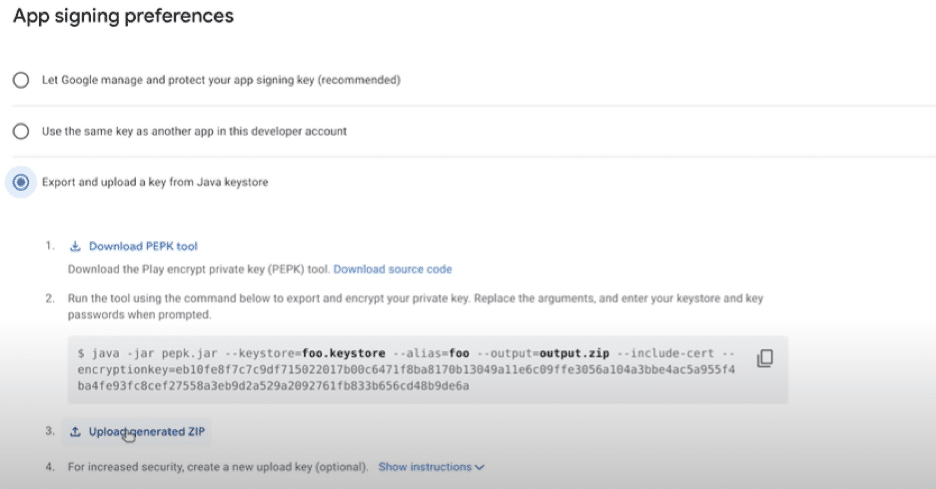
Always use the option “Export and Upload a key from Java Keystore” from a security point of view.
But how do we create an upload Key?
Self-signed certificates are used to generate an upload key. We will first discuss the simplistic way generally used to create a self-signed key via OpenSSL and later discuss the flaw and solution behind this approach:
A simplistic way to create a self-signed key via OpenSSL
Generation of Private Key
First, we create a private key. The below command creates a 4096-bit RSA private key (.key) with the OpenSSL command:
openssl genrsa -out upload.key 4096

If we want private key encrypted, add the -des3 option to the command.
openssl genrsa -des3 -out upload.key 4096

If the private key is encrypted, note that any automated build or CI/CD pipeline signing the upload will need the passphrase supplied at signing time, since there’s no interactive prompt in that context. Weigh that operational overhead against the security benefit before encrypting the key for an automated workflow.
Creating a Certificate Signing Request
You need a Certificate Signing Request (CSR) if you want your certificate signed. The CSR contains your public key and additional information (organization, country, etc.)
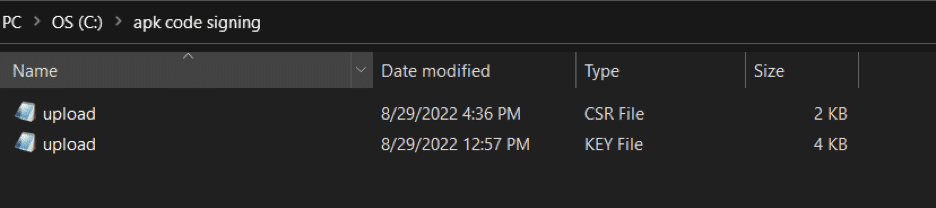
Let us create a CSR (upload.csr) from our existing private key:
openssl req -key upload.key -new -out upload.csr

Obtaining certificate from CSR and Key generated
Once the CSR and Private Key are generated, the next step is to create the certificate. The below command generates the certificate with 365 days validity:
openssl x509 -req -days 365 -in upload.csr -signkey upload.key -out upload.crt

The certificate received is in .crt format, having no private key, and we want a .pfx format (as it contains a private key) to sign files. We will use the below command to convert it into pfx:
openssl pkcs12 -inkey upload.key -in upload.crt -export -out upload.pfx
Once the password is provided, .pfx file will be generated.

This pfx file is then supposed to sign the Android Bundle.
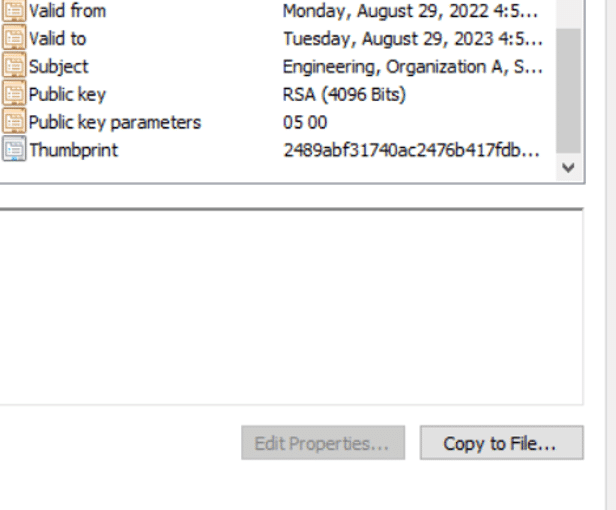
Sounds good, right? However, the files signed via this certificate are not accepted in Playstore. This is because the self-signed certificate does not contain Key Usage and Enhanced Key Usage extensions. To see this, open Certificates in the MMC (Microsoft Management Console) and load the Certificates snap-in. After opening the certificate, click the Details tab.
But, What are Key Usage Extensions?
Key usage (KU) extensions define the purpose of the public key contained in a certificate. A single key should be used for only one purpose.
How many Key Usage extensions are available, and which one should I choose?
As per RFC 5280 (Key Usage), below key usage extensions are available:
- Digital signature
- Non-repudiation
- Key encipherment
- Data encipherment
- Key agreement
- Certificate signing
- CRL signing
- Encipher only
- Decipher only
Similarly for Extended key usage (EKU), depending upon the use case, below values must be chosen:
| Extended key | Enable for these key usage extensions |
|---|---|
| TLS Web server authentication | Digital signature, key encipherment or key agreement |
| TLS Web client authentication | Digital signature and/or key agreement |
| Sign (downloadable) executable code | Digital signature |
| Email protection | Digital signature, non-repudiation, and/or key encipherment or key agreement |
| IPSEC End System (host or router) | Digital signature and/or key encipherment or key agreement |
| IPSEC Tunnel | Digital signature and/or key encipherment or key agreement |
| IPSEC User | Digital signature and/or key encipherment or key agreement |
| Timestamping | Digital signature, non-repudiation. |
Thus, for code signing use case, we require Digital Signature as Key Usage and Code Signing as Enhanced Key Usage

Now, How do I add KU and EKU extensions in my certificate?
To add them, we need to run below command in OpenSSL:
openssl req -x509 -nodes -newkey rsa:4096 -keyout key.pem -out server.pem -days 365 -subj /CN=Cert_Name/C=US/OU=Your_OU/O=Your_org_name -addext “keyUsage = digitalSignature” -addext “extendedKeyUsage = Code Signing”
Where:
CN = Common Name of the certificate (Generally organization name in code signing)
C= Country name
OU = Organization Unit (e.g., Engineering, IT, etc.)
O= Organization Name
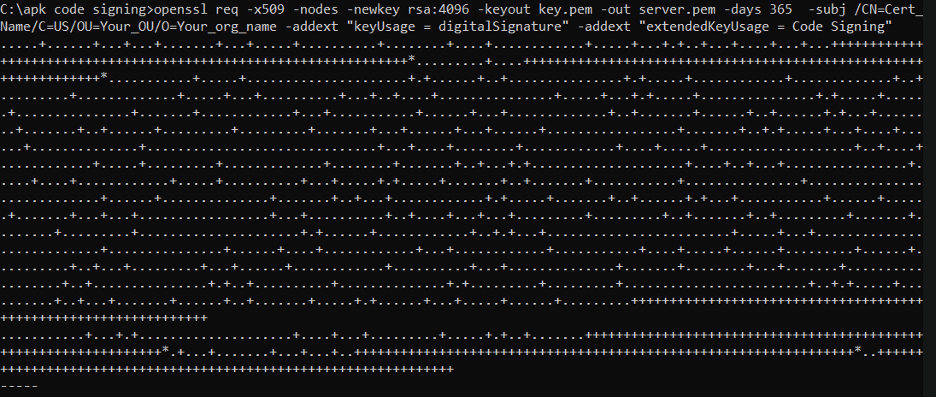
And this will generate the requisite code signing certificate with Key Usage and Enhanced Key Usage extension
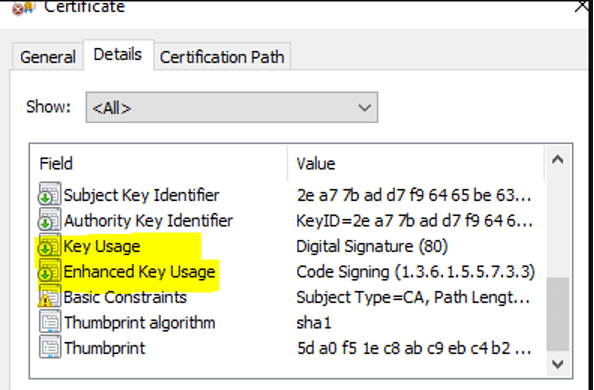
This certificate can now be successfully used to upload Android bundle to Google Play App Signing Console.
Frequently Asked Questions
Is my existing enterprise code signing certificate the wrong tool for this, or just missing an extension?
Just missing an extension. The Play Console rejects the certificate because it lacks the Digital Signature Key Usage and Code Signing Extended Key Usage extensions, not because it’s the wrong certificate type. Regenerating with the correct -addext flags resolves it.
Does the upload key need to be the same key that signs the final distributed APK?
No. Under Play App Signing, Google holds and uses the separate app signing key to sign what actually reaches users. The upload key only authenticates that the bundle you’re submitting came from you.
What happens if my upload key is compromised?
Google provides a process to reset the upload key associated with your app, since Google, not you, controls the actual app signing key used for distribution. This is precisely the containment benefit of keeping the two keys separate.
Conclusion
The fix here isn’t a different certificate, it’s the right extensions on the one you already know how to generate. Set Digital Signature as the Key Usage and Code Signing as the Extended Key Usage at generation time, and the same OpenSSL-based upload key workflow works for Play App Signing.