
- Key Takeaways
- Prerequisites and Quick Checklist
- Certificate Management with CertSecure Manager
- Step-by-Step Guide to Renew a Certificate on Apache
- Before-and-After Operational Workflow
- Owner and Action Matrix
- Rollback Guidance
- Common Errors and How to Avoid Them
- Success Metrics to Track
- Why This Matters for Enterprise Certificate Lifecycle Management
- Connecting to 47-Day TLS Certificate Readiness
- What to Do Next
- Conclusion
- Frequently Asked Questions
Quick Answer: Renewing a certificate on Apache with CertSecure Manager means generating or re-enrolling a TLS certificate through CertSecure Manager, downloading the signed PFX file, extracting the private key and certificate with OpenSSL, and deploying both files to the Apache server before restarting the service to apply the change. Done manually across hundreds of servers, this same process is the leading cause of preventable certificate outages.
Apache remains one of the most widely deployed web servers in enterprise environments, and every site it serves depends on a valid, correctly installed TLS certificate. This guide walks through the full renewal workflow using CertSecure Manager, Encryption Consulting’s certificate lifecycle management (CLM) platform, and adds the prerequisites, rollback steps, error handling, and success metrics that a PKI, security, platform, or compliance team needs to run this safely at scale.
Key Takeaways
- Two supported enrollment paths in CertSecure Manager: generate a new CSR, or enroll from an existing CSR.
- The renewal touches four files on the Apache side: the PFX from CertSecure Manager, the extracted private key, the extracted certificate, and the Apache config referencing both.
- Public TLS certificates are on a shrinking validity schedule under CA/B Forum Ballot SC-081v3: 200 days from March 2026, 100 days from March 2027, and 47 days from March 2029, making manual renewal on this cadence impractical at scale.
- 45% of organizations reported certificate-related downtime in the past year, and 37.5% of outages were tied specifically to expired certificates, according to DigiCert’s July 2025 Trust Pulse Survey.
- CertSecure Manager’s renewal agent workflows remove the manual steps below entirely for supported server types, including Apache.
Prerequisites and Quick Checklist
Confirm the items below before starting a renewal. Missing any one of these is the most common cause of a failed or delayed renewal.
Prerequisites Checklist
- Active CertSecure Manager account with Enrollment permissions and access to the target CA and certificate template
- Administrative or sudo access to the target Apache server
- OpenSSL installed on the machine used to extract the key and certificate (v1.1.1 or later; v3.x supported with the
-legacyflag for PKCS#12 compatibility) - Knowledge of the PFX export password set during certificate generation
- Current Apache virtual host configuration showing the existing
SSLCertificateFileandSSLCertificateKeyFilepaths - A maintenance window or low-traffic period, since Apache must be restarted to load the new certificate
- A backup of the current certificate and key files before overwriting them
Prerequisite-to-Action Table
| Prerequisite | Action Before Renewal | Owner |
|---|---|---|
| CertSecure Manager access | Confirm enrollment role and CA/template assignment | PKI team |
| Apache server access | Verify sudo/admin credentials and SSH access | Platform team |
| OpenSSL availability | Confirm version and legacy provider support | Platform team |
| Existing config paths | Locate SSLCertificateFile and SSLCertificateKeyFile in the vhost config | Platform team |
| Backup | Copy current .crt and .key files to a rollback location | Platform team |
| Change window | Schedule restart during low-traffic period | Security/Change management |
| Compliance record | Log renewal in the certificate inventory/CBOM for audit trail | Compliance team |
Certificate Management with CertSecure Manager
CertSecure Manager is Encryption Consulting’s certificate lifecycle management (CLM) platform. It addresses the core challenge organizations face in managing PKI: the sheer number of certificates across the infrastructure, from certificate discovery and automated renewal to enforcing organization-wide issuance policies. Integrations with ServiceNow and Microsoft Teams support alerting and incident management workflows so a coming expiration never depends on someone remembering a spreadsheet.
CertSecure Manager separates user data by department and role. Administrators define policies and assign roles, and users can only perform the actions their permissions allow, which keeps certificate operations auditable across large teams.
With a high-availability (HA) architecture, CertSecure Manager’s connector clients integrate all public and private CAs into a single pane of glass. Renewal agent workflows support Apache, Tomcat, nginx, and load balancers like F5, deploying renewed certificates without manual intervention on the endpoints that support it. That automation is also what closes the gap this guide’s manual steps expose: every manual step below is a step CertSecure Manager’s renewal agent removes for supported Apache deployments.
Certificate lifecycle management does not stop at TLS. The same discovery and inventory problem applies to every cryptographic asset in an environment, which is where a cryptographic bill of materials (CBOM) becomes relevant. Encryption Consulting’s CBOM Secure extends certificate discovery into full crypto-asset inventory, and the CBOM inventory-to-intelligence guide covers how that inventory turns into actionable crypto agility.
Step-by-Step Guide to Renew a Certificate on Apache
There are two supported ways to renew a certificate for a website hosted on Apache. First, generate a new Certificate Signing Request (CSR) in CertSecure Manager, which creates a fresh private key and a CSR carrying the domain name, organization name, and other subject details, then submits it to a certificate authority (CA) for validation and issuance. Second, enroll directly from a CSR that already exists, skipping CSR generation and submitting the existing CSR straight to the CA.
CertSecure Manager automates the labor-intensive parts of this acquisition process, cutting the manual steps below down to configuration and deployment on the Apache side.
Step 1: Generate the Certificate in CertSecure Manager
Log in to CertSecure Manager and navigate to Generate Certificate under the Enrollment section on the left-hand menu. Select the appropriate CA, certificate template, SAN attributes, and any other required fields, then click Generate Certificate.
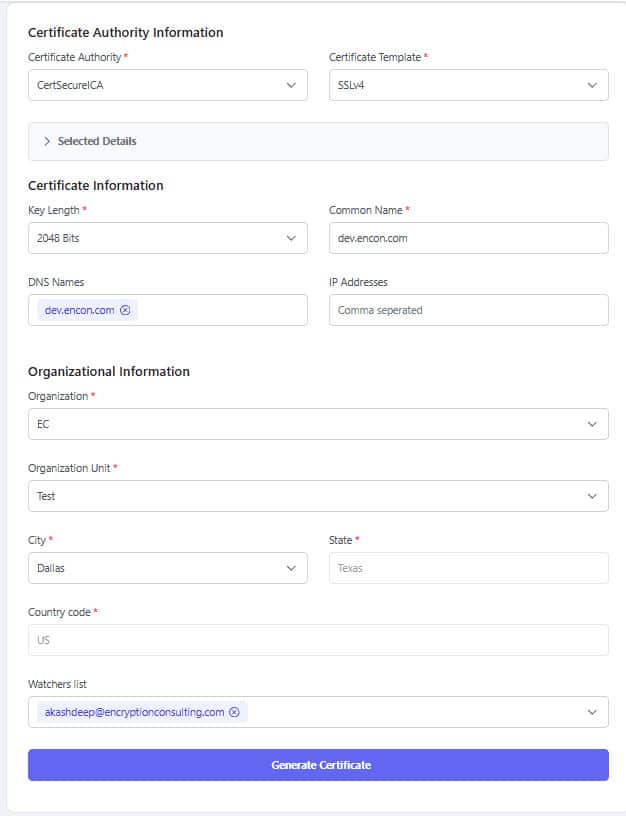
Expected outcome: a new enrollment task appears in the Enrollment Inventory with a pending or issued status.
Step 2: Download the Certificate from Enrollment Inventory
Navigate to the Enrollment Inventory and locate the certificate using its enrollment ID (check Tasks if it is not immediately visible). Download the PFX file and transfer it to the Apache server, or to the workstation you will use to prepare the files.
Expected outcome: a .pfx file containing the certificate, its chain, and the private key, protected by the export password you set during enrollment.
Step 3: Extract the Private Key and Certificate with OpenSSL
Apache needs the private key and certificate as separate PEM files, not a combined PFX. Extract the private key first:
openssl pkcs12 -in filename.pfx -nocerts -out key.pem -legacy

This command produces an encrypted private key. For an unencrypted key, add -nodes:
openssl pkcs12 -in filename.pfx -nocerts -nodes -out key.pem -legacy

OpenSSL will prompt for the PFX export password set when the certificate was generated. Next, extract the certificate itself, either with OpenSSL or by renaming the certificate export to a .pem extension:
openssl pkcs12 -in myfile.pfx -out certificate.pem -nokeys -legacy

Expected outcome: two files, key.pem and certificate.pem, ready to deploy.
Common error: on OpenSSL 3.x, omitting -legacy can cause a “Mac verify error” when the PFX was generated with legacy RC2/3DES encryption. Adding -legacy loads the legacy provider and resolves it.
Step 4: Deploy the Certificate and Key on the Apache Server
Place certificate.pem and key.pem in the same path where the current certificate and key for the site are stored, matching the file names and permissions Apache already expects (typically referenced by SSLCertificateFile and SSLCertificateKeyFile in the vhost configuration). Back up the previous files before overwriting them.
Expected outcome: the vhost configuration points at the new certificate and key, and file permissions match the previous files (commonly 600 for the private key, owned by the Apache service user).
Step 5: Restart Apache and Verify
Test the configuration before restarting:
apachectl configtest
If the test passes, restart the service:
sudo systemctl restart apache2
Verify the new certificate is live and check its expiration date:
openssl s_client -connect yourdomain.com:443 -servername yourdomain.com | openssl x509 -noout -dates
Expected outcome: apachectl configtest returns “Syntax OK,” the site loads without a certificate warning, and the printed notAfter date matches the new certificate’s validity period.
Before-and-After Operational Workflow
| Stage | Manual Process (Before) | With CertSecure Manager Automation (After) |
|---|---|---|
| Discovery | Spreadsheet tracking, easy to miss a certificate | Centralized inventory across all connected CAs |
| Enrollment | Manual CSR generation and submission per certificate | Policy-driven enrollment through CertSecure Manager |
| Key/cert extraction | Manual OpenSSL commands per server | Handled by the renewal agent for supported servers, including Apache |
| Deployment | Manual file placement and permission checks | Automated deployment via renewal agent |
| Restart | Manually scheduled and executed | Coordinated as part of the automated workflow |
| Alerting | Ad hoc reminders or none | ServiceNow/Teams alerting on expiration and failures |
| Audit trail | Manually maintained, often incomplete | Logged automatically in CertSecure Manager and CBOM inventory |
Owner and Action Matrix
| Team | Responsibility in This Workflow | Key Action |
|---|---|---|
| PKI team | Owns CA relationships, templates, and enrollment policy | Configure CertSecure Manager templates and approve enrollment scope |
| Security team | Owns risk assessment and incident response for certificate failures | Set expiration alert thresholds and review outage post-mortems |
| Platform/infrastructure team | Owns the Apache servers and deployment execution | Execute or automate deployment, restart, and verification steps |
| Compliance team | Owns audit evidence for certificate lifecycle controls | Confirm renewal events are logged in the inventory/CBOM for audit review |
Rollback Guidance
If the new certificate causes an outage or misconfiguration, roll back with the backup taken during Step 4:
- Restore the previous
certificate.pemandkey.pemfrom backup to the original file paths. - Confirm file ownership and permissions match the pre-change state (typically
600for the private key). - Run
apachectl configtestto confirm the configuration is valid before restarting. - Restart Apache and re-verify the site loads with the restored certificate.
- Investigate the failure (expired chain, mismatched key, wrong SAN) before attempting the renewal again.
- Log the rollback event in the certificate inventory so the audit trail reflects what actually happened.
Common Errors and How to Avoid Them
| Error | Likely Cause | Fix |
|---|---|---|
| “Mac verify error: invalid password?” during PKCS#12 extraction | OpenSSL 3.x defaulting to a provider that does not support the PFX’s legacy encryption | Add the -legacy flag to the OpenSSL command |
| Apache fails to start after deployment | Mismatched certificate and private key, or wrong file path in the vhost config | Verify SSLCertificateFile/SSLCertificateKeyFile paths and confirm the key matches the certificate with openssl x509 -noout -modulus and openssl rsa -noout -modulus |
| Browser still shows the old certificate | Apache was not restarted, or a caching proxy/CDN in front of it still serves the old certificate | Confirm the restart completed and purge any CDN/proxy cache |
| Certificate expires again sooner than expected | Validity period misunderstood under the shrinking CA/B Forum schedule | Confirm the issued validity period against the current CA/B Forum phase (200/100/47 days) rather than assuming the previous 398-day default |
Success Metrics to Track
- Certificate-related downtime incidents per quarter (target: zero, benchmarked against the 45% of organizations reporting at least one in DigiCert’s 2025 survey)
- Percentage of renewals completed before expiration versus after (target: 100% before)
- Mean time to renew per certificate, manual versus automated
- Number of certificates under automated renewal versus manual tracking
- Reduction in manual renewal tickets quarter over quarter
- Audit findings related to expired or misconfigured certificates (target: zero)
Why This Matters for Enterprise Certificate Lifecycle Management
A single expired certificate on a production Apache server can take down a customer-facing site, and this is not a rare event. DigiCert’s July 2025 Trust Pulse Survey found that 45% of organizations experienced certificate-related downtime in the past year, and 37.5% of those outages were caused specifically by expired certificates (DigiCert, July 2, 2025). Manual renewal workflows like the one detailed above are necessary to understand, but they do not scale to the certificate volumes most enterprises now manage.
Our take: teams should treat the manual steps in this guide as a documented fallback and a training reference, not the default operating model. Every enterprise running Apache at scale should be moving certificate renewal onto an automated CLM workflow, both to eliminate the outage risk above and because the certificate validity window keeps shrinking, which makes manual renewal cadence unsustainable regardless of team discipline.
Connecting to 47-Day TLS Certificate Readiness
CA/B Forum Ballot SC-081v3, sponsored by Sectigo and passed in April 2025, phases the maximum public TLS certificate validity down from 398 days to 200 days starting March 15, 2026, 100 days starting March 15, 2027, and 47 days starting March 15, 2029 (Sectigo, April 14, 2025). At a 47-day cadence, a manual renewal process like the one in this guide would need to run roughly eight times per year, per certificate, across every Apache instance in the environment.
This is the same crypto agility problem as post-quantum migration: both require knowing exactly what certificates and cryptographic assets exist before they can be managed at speed. Encryption Consulting’s CBOM Secure builds that certificate discovery and crypto-asset inventory, and the PQC Center of Excellence and PQC readiness programs extend that same discipline to quantum-safe algorithm migration. Automating Apache certificate renewal through CertSecure Manager now is direct preparation for the 47-day endpoint of this schedule.
What to Do Next
For PKI Teams
Audit which Apache servers still rely on manual renewal and confirm CertSecure Manager templates and CA connections cover all of them.
For Security Teams
Set expiration alerting thresholds well ahead of the 47-day endpoint and review the last four quarters of certificate-related incidents against the success metrics above.
For Platform Teams
Pilot CertSecure Manager’s renewal agent on a non-critical Apache instance before rolling it out fleet-wide, and document the rollback procedure alongside the standard runbook.
For Compliance Teams
Confirm renewal and rollback events are captured in the certificate inventory so audit evidence for lifecycle controls is generated automatically rather than reconstructed after the fact.
Conclusion
Renewing a certificate on Apache with CertSecure Manager is straightforward once the enrollment, extraction, and deployment steps above are documented and rehearsed. But as certificate validity periods shrink toward 47 days and certificate volumes keep growing, manual execution of these steps stops being a viable long-term operating model. Treat this guide as the reference for how the process works, and treat CertSecure Manager’s renewal automation as the path to running it safely at scale. See how the same workflow runs on other server types in our guide to renewing and revoking certificates in Microsoft PKI.
Frequently Asked Questions
What is the main takeaway from Renewing Certificate on Apache with CertSecure Manager?
Renewing an Apache certificate involves generating or enrolling a certificate in CertSecure Manager, downloading the PFX, extracting the key and certificate with OpenSSL, deploying both to the server, and restarting Apache. The manual process works but does not scale, which is why CertSecure Manager’s renewal agent automates it for supported Apache deployments.
Why does this matter for enterprise certificate lifecycle management?
Certificate outages are common and costly. DigiCert’s July 2025 Trust Pulse Survey found 45% of organizations experienced certificate-related downtime in the past year, with 37.5% of incidents traced to expired certificates. Enterprise-scale Apache deployments amplify that risk because a single missed renewal can take down a production site.
What teams are responsible for acting on this guidance?
Four teams typically share responsibility: the PKI team owns CA relationships and enrollment templates, the security team owns alerting thresholds and incident review, the platform team executes deployment and restarts, and the compliance team confirms renewal events are captured for audit purposes.
What risks increase if this topic is handled manually?
Manual renewal raises the risk of missed expiration dates, mismatched keys and certificates, incorrect file permissions, and incomplete audit trails. As validity periods shrink under the CA/B Forum’s phased schedule, the frequency of manual renewals needed per certificate increases, multiplying the chance of human error at each step.
How does automation reduce certificate outage risk?
CertSecure Manager’s renewal agent workflow removes the manual extraction, deployment, and restart steps for supported servers, including Apache, and replaces ad hoc tracking with centralized expiration alerting through integrations like ServiceNow and Microsoft Teams. That closes the gap between when a certificate is due for renewal and when someone actually acts on it.
What metrics should teams track after implementation?
Track certificate-related downtime incidents per quarter, the percentage of renewals completed before versus after expiration, mean time to renew, the number of certificates under automated versus manual management, the reduction in manual renewal tickets, and any audit findings tied to expired or misconfigured certificates.
How does this connect to 47-day TLS certificate readiness?
CA/B Forum Ballot SC-081v3 phases maximum public TLS certificate validity down to 200 days in March 2026, 100 days in March 2027, and 47 days by March 2029. At a 47-day cadence, manual renewal becomes impractical, making the automation described in this guide a direct prerequisite for staying compliant with the shrinking schedule.
How should this be handled in multi-cloud or hybrid PKI environments?
Multi-cloud and hybrid environments should route all certificate enrollment and renewal, regardless of where the Apache instance runs, through a single CLM platform like CertSecure Manager rather than managing each cloud or on-premises environment separately. This keeps CA relationships, templates, and audit trails consistent across environments instead of fragmented per platform.
What prerequisites are needed before implementation?
Teams need CertSecure Manager enrollment access, administrative access to the Apache server, OpenSSL installed with legacy provider support, the current vhost configuration paths, the PFX export password, a scheduled maintenance window for the restart, and a backup of the existing certificate and key files.
What screenshots or configuration examples should be included?
Documentation should include the CertSecure Manager Generate Certificate screen, the Enrollment Inventory view used to locate and download the PFX, terminal output for each OpenSSL extraction command, and the relevant Apache vhost configuration lines referencing the certificate and key file paths.
- Key Takeaways
- Prerequisites and Quick Checklist
- Certificate Management with CertSecure Manager
- Step-by-Step Guide to Renew a Certificate on Apache
- Before-and-After Operational Workflow
- Owner and Action Matrix
- Rollback Guidance
- Common Errors and How to Avoid Them
- Success Metrics to Track
- Why This Matters for Enterprise Certificate Lifecycle Management
- Connecting to 47-Day TLS Certificate Readiness
- What to Do Next
- Conclusion
- Frequently Asked Questions