
- What Causes the CipherTrust Manager Web Interface Certificate Error?
- Common Causes of the CipherTrust Manager Web Interface Certificate Error
- How to Fix the CipherTrust Manager Web Interface Certificate Error
- Decision Table: Symptom, Cause, and Fix
- Lifecycle Ownership of the Web Interface Certificate
- Rotation Triggers for This Certificate
- Access Policy: Who Should Be Able to Replace This Certificate?
- Audit Evidence for Certificate Changes
- Manual Certificate Replacement vs. Automated Certificate Lifecycle Management
- Incident Response: Benign Expiry or Genuine Compromise?
- Limitations
- What Would Encryption Consulting Recommend?
- FAQ
- Conclusion
Quick answer: The CipherTrust Manager web interface certificate error appears when your browser cannot validate the TLS certificate presented by the management console, usually shown as NET::ERR_CERT_AUTHORITY_INVALID, NET::ERR_CERT_DATE_INVALID, or NET::ERR_CERT_COMMON_NAME_INVALID. The root cause is almost always an untrusted issuing CA, an expired or not-yet-active certificate, a hostname mismatch, or clock skew between the CipherTrust Manager node and the client.
Key takeaways:
- By default, CipherTrust Manager auto-generates a self-signed web interface certificate from its local CA, which most browsers flag as untrusted.
- Auto-generation re-triggers on every service restart if the active certificate’s issuing CA does not match the configured Local CA, silently undoing manual fixes.
- Replacing the certificate requires a CSR, an externally signed certificate, and the root and intermediate CA chain uploaded to External Trusted CAs before the interface will trust it.
- Treat this certificate as a managed asset with an owner, a rotation schedule, and an audit trail, not a one-time setup step.
- An unexpected certificate change outside a planned maintenance window is a signal worth investigating as a possible compromise, not just a renewal.
Published: April 2023. Updated: August 2026. Reviewed by Encryption Consulting’s Key Management Advisory team.
A CipherTrust Manager deployment is the control plane for an organization’s encryption keys, so a browser warning on its own web interface tends to get attention fast. This guide walks through why the CipherTrust Manager web interface certificate error happens, how to fix it, and how to stop treating the fix as a one-time task by giving this certificate the same lifecycle discipline you would apply to any certificate protecting an administrative interface.
What Causes the CipherTrust Manager Web Interface Certificate Error?
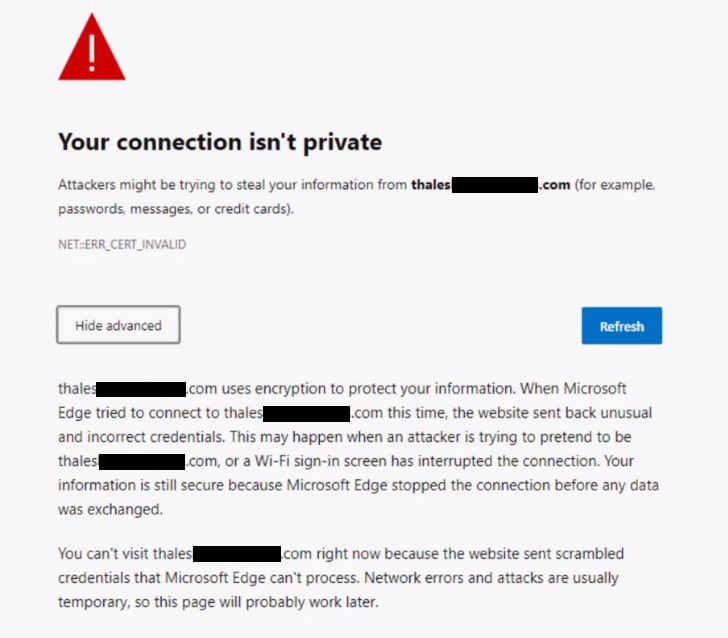
The error is your browser’s TLS trust check failing, not a CipherTrust Manager malfunction. Every CipherTrust Manager node ships with a certificate for its web interface, and by default that certificate is auto-generated and signed by the appliance’s own local CA (commonly labeled the KeySecure Root CA in the interface). Browsers do not trust that local CA out of the box, so the very first login to a fresh node typically shows a certificate warning even though nothing is broken. The same warning shows up for a different reason once an organization replaces that default certificate with one from an external or enterprise CA: if the upload is incomplete, misconfigured, expired, or issued for the wrong hostname, the browser rejects it for a specific, diagnosable reason.
Common Causes of the CipherTrust Manager Web Interface Certificate Error
Four causes account for most cases. Each maps to a distinct browser error code, which is the fastest way to tell them apart before you start troubleshooting.
Untrusted or self-signed CA (NET::ERR_CERT_AUTHORITY_INVALID)
The certificate is valid and unexpired, but the browser or operating system does not trust the CA that signed it. This is the default state for a new CipherTrust Manager node, and it also appears if an external CA’s root or intermediate certificate was never added to the interface’s External Trusted CAs list.
Expired or not-yet-valid certificate (NET::ERR_CERT_DATE_INVALID)
This shows up two ways: the certificate genuinely expired without being renewed, or the CipherTrust Manager node’s system clock has drifted out of sync with NTP. Thales’ own certificate-issuance logic backdates the notBefore field by roughly 24 hours to absorb minor timezone and clock differences across nodes, so persistent date errors almost always point back to an NTP problem rather than the certificate itself.
Hostname mismatch (NET::ERR_CERT_COMMON_NAME_INVALID)
The certificate’s Common Name or Subject Alternative Name does not match the hostname or IP address typed into the browser. This is common after a node is renamed, re-IPed, or added to a cluster, or when a certificate was requested for a load-balanced hostname that individual nodes are also being accessed by directly.
Certificate uploaded but not yet active
Immediately after uploading a new certificate and restarting the web service, the browser may still show the old warning for a few minutes. In our engineers’ experience this is almost always the browser’s own certificate cache or the service restart still completing, not an inherent delay in CipherTrust Manager itself, since Thales’ documentation states newly issued certificates are active immediately. A hard refresh or a private browsing window after the restart finishes usually resolves it.
How to Fix the CipherTrust Manager Web Interface Certificate Error
The steps below replace the default, browser-untrusted certificate with one signed by an external or enterprise CA. This example configures a certificate for a node named thales01.ec.com; substitute your own hostname throughout.
-
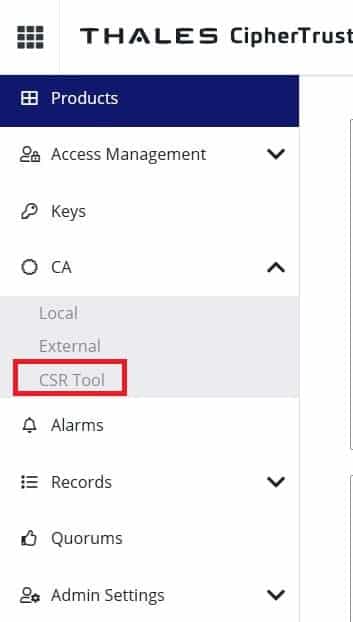
Log in to CipherTrust Manager. From the dashboard, click CSR Tool under CA.
-
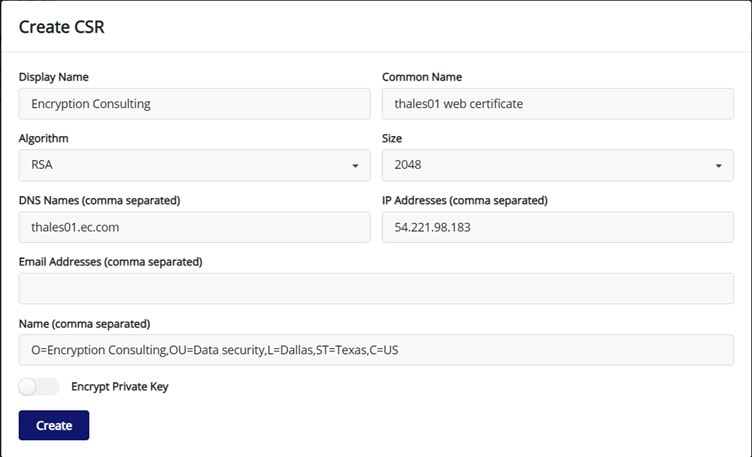
Click + Create CSR and enter the required information, including a Common Name that matches the exact hostname (and Subject Alternative Names for any additional DNS names or IPs) you will use to reach this node.
-
Verify the information and click Create.
-
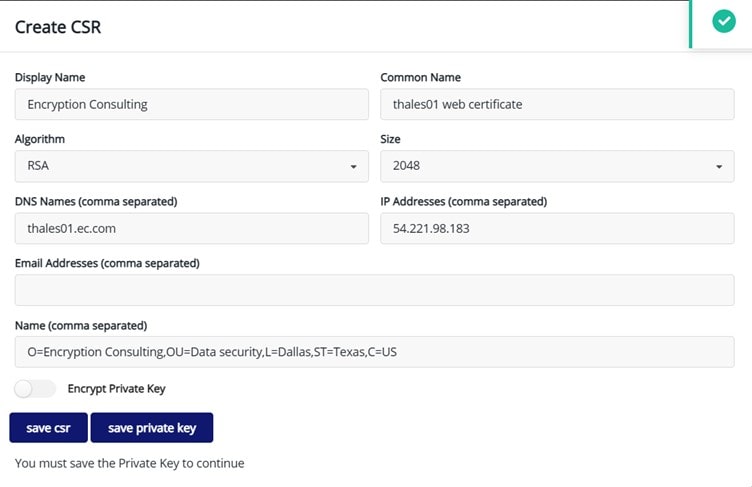
Save the private key and the CSR. For the highest level of security, Thales recommends generating the CSR outside CipherTrust Manager entirely so the private key is never exposed to the appliance; the built-in CSR tool is the simpler path for most deployments.
-
Send the CSR to your signing authority to create the signed certificate.
Note: The preferred certificate format is PEM. PKCS12 is also supported for the combined chain and private key.
-
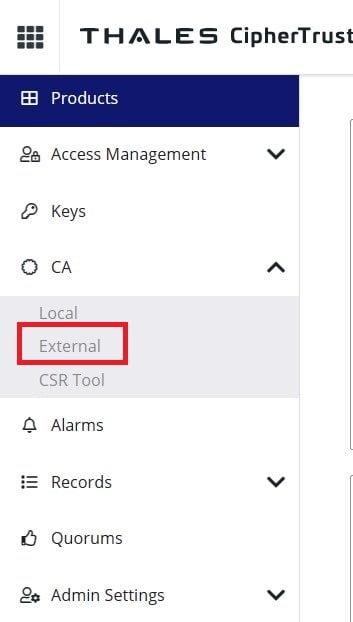
Upload the root and intermediate CA certificates. From the dashboard, click External under the CA section.
-
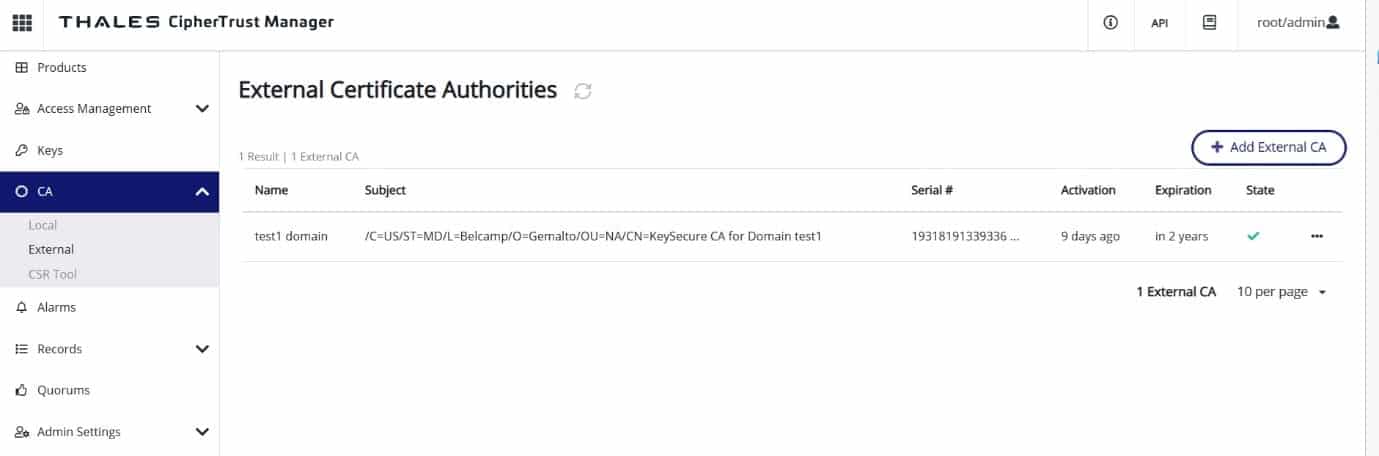
Click + Add External CA.
-
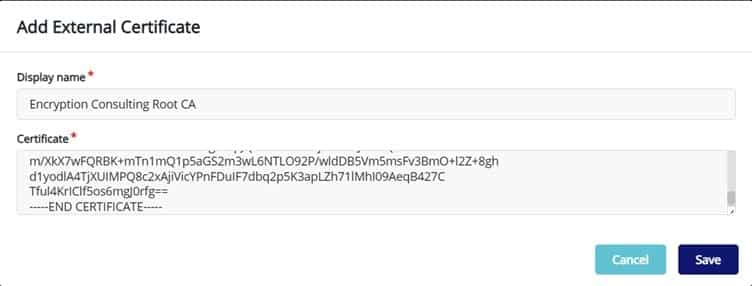
Enter a display name and paste the root CA certificate into the box, then click Save.
-
Repeat the same steps to add the intermediate or issuing CA.
-
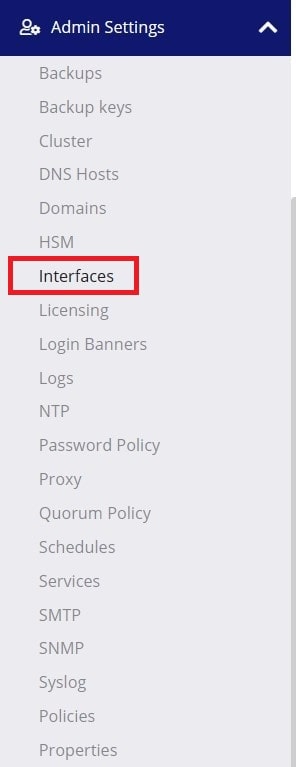
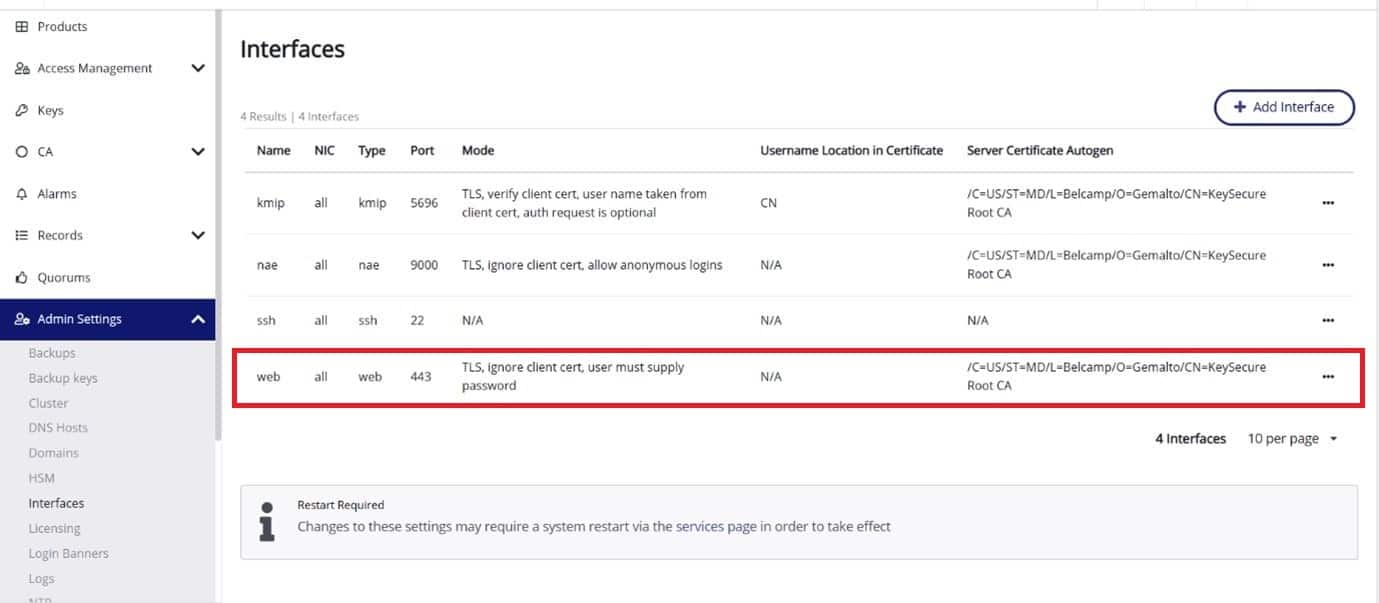
Navigate to Interfaces under Admin Settings.
-
Click the three-dot menu next to Web and select Edit.
-
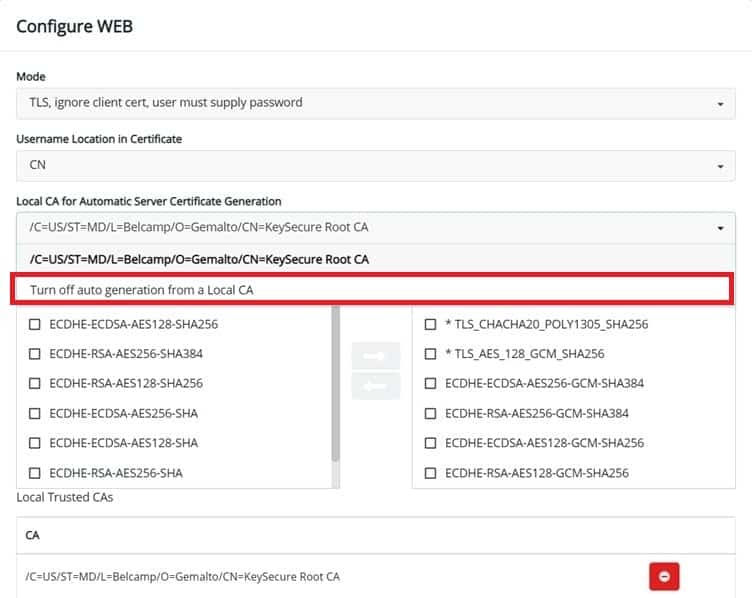
Under Automatic Server Certificate Generation, turn off auto-generation from the Local CA. This step matters more than it looks: if you skip it, CipherTrust Manager can regenerate a self-signed certificate the next time the web service restarts and silently undo the rest of this process.
-
Add the root CA and the intermediate CA to the External Trusted CAs list for this interface.
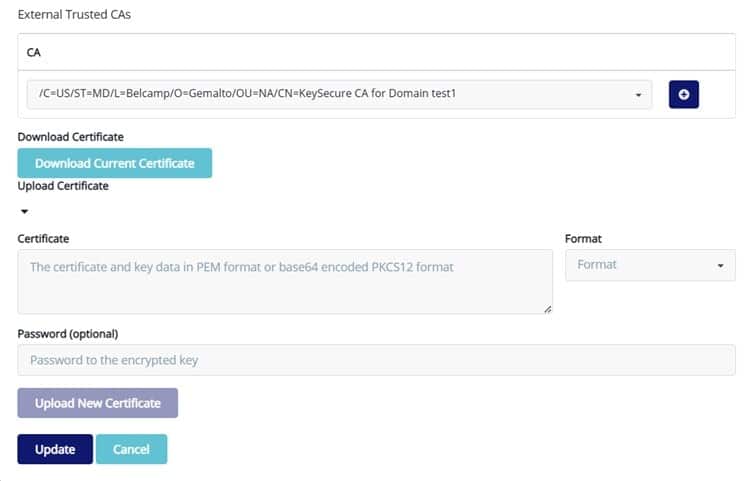
- Expand the Upload Certificate option and paste the full certificate chain (leaf certificate followed by intermediate and root) into the box.
- Select PEM as the format.
- Enter the private key password, if one was set during CSR generation.
- Click Upload New Certificate. The externally signed certificate is now assigned to the web interface.
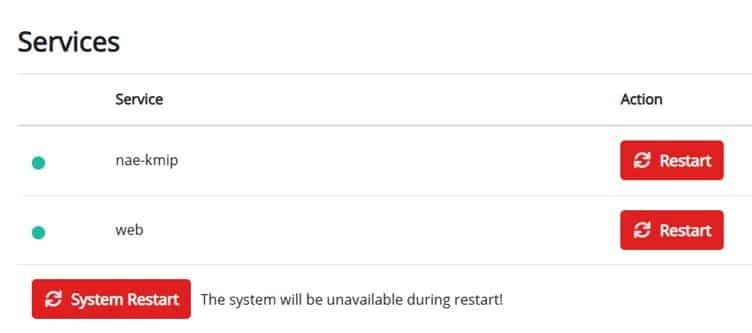
- Navigate to Services under Admin Settings.
-
Click System Restart to apply the change.
-
Once the services finish restarting, browse to the CipherTrust Manager hostname. If a certificate error still appears, wait a few minutes for the restart to fully complete and the client’s certificate cache to clear, then hard-refresh the page before troubleshooting further.
In a clustered CipherTrust Manager deployment, repeat this process on every node individually. Interface certificates are configured per node, not replicated automatically across the cluster, the same way backup keys are not automatically shared between nodes, as covered in our CipherTrust Manager backup error guide.
Decision Table: Symptom, Cause, and Fix
| Symptom | Likely Cause | Fix |
|---|---|---|
| NET::ERR_CERT_AUTHORITY_INVALID or “not trusted” warning | Certificate signed by the default local CA, or the external CA chain was never added to External Trusted CAs | Add the root and intermediate CA to External Trusted CAs, or replace the default certificate with an externally signed one |
| NET::ERR_CERT_DATE_INVALID | Certificate genuinely expired, or the CipherTrust Manager node’s clock has drifted from NTP | Check the certificate’s validity dates in the interface; correct NTP sync first, then renew only if the certificate is actually expired |
| NET::ERR_CERT_COMMON_NAME_INVALID | Certificate’s CN or SAN does not match the hostname or IP used to reach the interface | Reissue the certificate with the correct CN and SAN entries for every hostname and IP the node is accessed by |
| Warning reappears right after a successful upload and restart | Auto-generation from the Local CA was left enabled and re-triggered on restart, or the browser cached the old certificate | Disable Automatic Server Certificate Generation before uploading; restart the service again; clear the browser’s certificate cache or use a private window |
| Error is identical on every node in a cluster | Certificate was only uploaded to one node; interface certificates are not replicated across the cluster | Repeat the CSR generation and upload steps individually on each node |
Lifecycle Ownership of the Web Interface Certificate
Because CipherTrust Manager is the control plane for encryption keys, its own web interface certificate deserves the same ownership model you would apply to a certificate protecting any privileged administrative console. In practice that means naming a specific team, usually the key management or PKI operations group rather than a general IT help desk, as the owner of this certificate on every node and cluster the organization runs. That owner is responsible for tracking the certificate’s issuer, expiry date, and hostname coverage; renewing it before expiry rather than reacting to a browser warning; and keeping the CSR, signed certificate, and CA chain in the same change-managed location as other production TLS material. Treating this certificate as an unowned, one-time setup artifact is exactly how organizations end up rediscovering it through a locked-out admin console.
Rotation Triggers for This Certificate
CipherTrust Manager itself logs expiration warnings at 91, 7, and 0 days before a certificate expires, which is a reasonable baseline for a rotation calendar. Beyond routine expiry, plan to rotate the web interface certificate whenever any of the following occurs:
- The certificate is approaching one of the 91, 7, or 0-day expiration thresholds CipherTrust Manager tracks internally.
- The issuing CA is compromised, deprecated by browser trust stores, or being retired as part of a PKI migration.
- A node is renamed, re-IPed, or added behind a new load-balanced hostname, changing the CN or SAN the certificate needs to cover.
- The organization moves from the default self-signed certificate to an externally or internally CA-issued one.
- An admin credential with access to Interfaces or the CA sections is suspected of compromise, since that access is sufficient to replace this certificate.
- A scheduled audit or penetration test flags the certificate’s key length, signature algorithm, or validity period as out of policy.
Access Policy: Who Should Be Able to Replace This Certificate?
Uploading a new certificate to the web interface, adding an entry to External Trusted CAs, and restarting the web service are all administrative actions performed under Admin Settings, which means whoever holds that access can single-handedly change what every browser trusts when connecting to the key management console. That capability should sit with a small, named group, typically the CipherTrust Manager system administrators or a dedicated PKI operations role, rather than the broad set of users who hold general administrator rights on the appliance. Separate the ability to request and approve a certificate change from the ability to execute it where the organization’s change-control process allows, and require a documented change ticket before any Interfaces or External Trusted CAs modification, even for routine renewals.
Audit Evidence for Certificate Changes
Every certificate replacement on the web interface should leave a trail an auditor can follow without asking an admin to remember what happened. At minimum, retain the original CSR, the signed certificate and its CA chain, the change ticket or approval record authorizing the update, and a timestamp for when the service was restarted to apply it. Cross-reference those records against CipherTrust Manager’s own administrative activity logging, which records configuration changes made through the interface, so that an unexplained certificate change surfaces during a routine log review rather than during an incident response call. For organizations managing certificates on this scale across many appliances, a centralized certificate lifecycle platform that timestamps issuance, renewal, and deployment automatically produces this evidence without relying on someone documenting it by hand.
Manual Certificate Replacement vs. Automated Certificate Lifecycle Management
The walkthrough above is a manual process, and for a single CipherTrust Manager node it is manageable. It stops being manageable once an organization is running a multi-node cluster, multiple environments, or dozens of appliances across regions, because each certificate has to be tracked, renewed, and audited individually with no shared visibility across nodes.
| Consideration | Manual Replacement | Automated Certificate Lifecycle Management |
|---|---|---|
| Expiry tracking | Relies on CipherTrust Manager’s own 91/7/0-day log alerts being noticed and actioned per node | Continuous monitoring and proactive renewal across every node before expiry |
| Effort at scale | Linear with the number of nodes; each requires its own CSR, upload, and restart | Centralized issuance and deployment across a fleet, with policy applied consistently |
| Audit trail | Manual record-keeping outside the appliance, easy to fall behind on | Automatic timestamped record of issuance, renewal, and deployment |
| Human error risk | Higher; a skipped step (like leaving auto-generation enabled) can silently revert the fix | Lower; workflow enforces the correct sequence every time |
| Best fit | A single node or a small, static deployment | Clustered, multi-region, or growing CipherTrust Manager deployments |
Incident Response: Benign Expiry or Genuine Compromise?
Most certificate warnings on this interface are benign: an expiry nobody tracked, a node that was never given a trusted certificate in the first place, or NTP drift. Treat the error differently, and escalate it, if any of the following are true:
- The certificate changed unexpectedly, with no matching change ticket or maintenance window on record.
- The certificate is signed by a CA nobody recognizes as an approved issuer for this environment.
- The administrative activity log shows an Interfaces or External Trusted CAs change made by an account that should not have that access, or at a time nobody was working.
- Users report the warning appearing intermittently rather than consistently, which can indicate traffic being intercepted by an unauthorized certificate rather than a straightforward configuration problem.
If any of those apply, do not simply click through the warning or reissue a replacement certificate and move on. Pull the administrative activity log for the affected node, confirm who made the change and from where, rotate the credentials for any account with Interfaces or CA access, and treat the CipherTrust Manager console itself as a system that may have been targeted, given that it sits in front of the organization’s encryption key material. Only after that investigation is closed should the certificate be reissued and the incident documented alongside the audit evidence described above.
Limitations
This guide covers the TLS certificate that secures browser access to the CipherTrust Manager web interface itself. It does not cover certificate-based user authentication into that interface, certificates CipherTrust Manager issues or manages on behalf of other systems through its own CA services, or the separate KMIP and NAE-XML interfaces, which are configured independently under the same Interfaces section. Menu labels and click paths can vary slightly between CipherTrust Manager releases; confirm the exact steps against Thales’ official documentation for your specific version before making changes in a production environment.
What Would Encryption Consulting Recommend?
We would not leave the web interface certificate on a set-it-and-forget-it manual cycle, especially once an organization is running more than one CipherTrust Manager node. Our CertSecure Manager platform gives certificate lifecycle management teams centralized discovery, renewal, and audit tracking for exactly this kind of administrative interface certificate, so expiry becomes a scheduled event instead of a browser warning someone stumbles into. For organizations that do not yet have an internal CA capable of issuing trusted certificates to appliances like CipherTrust Manager, our PKI-as-a-Service offering stands up that issuing capability without the overhead of running a private CA in-house. And if your team is troubleshooting a CipherTrust Manager deployment beyond this specific error, our CipherTrust Manager support services bring hands-on Thales expertise to configuration, migration, and clustering issues.
FAQ
What does NET::ERR_CERT_AUTHORITY_INVALID mean on the CipherTrust Manager web interface?
It means the browser could not verify the CA that signed the certificate presented by the interface. This is expected the first time you access a new CipherTrust Manager node, since it ships with a self-signed certificate from its local CA. It also appears after installing an externally signed certificate if that CA’s root and intermediate certificates were never added to External Trusted CAs.
Why does CipherTrust Manager use a self-signed certificate by default?
The appliance needs a working HTTPS certificate before an administrator can even reach the interface to configure anything else, so it auto-generates one from its own local CA at initialization. That certificate is functional but not trusted by external browsers or operating systems until it is replaced with one signed by a CA your environment already trusts.
How often should the CipherTrust Manager web interface certificate be rotated?
Rotate it before it hits the 91, 7, and 0-day expiration thresholds CipherTrust Manager logs internally, and treat any organizational trigger, such as a suspected credential compromise, a hostname change, or a CA retirement, as an immediate rotation event regardless of where the certificate sits in its validity period.
Can I use a publicly trusted CA certificate for the CipherTrust Manager admin interface?
Yes, as long as the CipherTrust Manager hostname is resolvable and the CA can validate it, but most organizations issue this certificate from an internal enterprise or private CA instead, since the management interface is typically restricted to internal networks and does not need public CA validation.
Does uploading a certificate to one node apply it to the entire CipherTrust Manager cluster?
No. Web interface certificates are configured per node and are not automatically replicated across a cluster, the same way backup keys require separate handling on each node. Every node needs its own CSR, signed certificate, and upload through Admin Settings.
Conclusion
The CipherTrust Manager web interface certificate error is almost always one of four things: an untrusted CA, an expired or not-yet-valid certificate, a hostname mismatch, or a stale browser cache after a legitimate change. The fix is straightforward once you know which one you are looking at. What separates a resilient deployment from one that will hit this error again next year is treating the certificate itself as a managed asset, with a named owner, a rotation schedule tied to CipherTrust Manager’s own expiration alerts, restricted access to change it, and an audit trail that explains every change after the fact.
References
- What Causes the CipherTrust Manager Web Interface Certificate Error?
- Common Causes of the CipherTrust Manager Web Interface Certificate Error
- How to Fix the CipherTrust Manager Web Interface Certificate Error
- Decision Table: Symptom, Cause, and Fix
- Lifecycle Ownership of the Web Interface Certificate
- Rotation Triggers for This Certificate
- Access Policy: Who Should Be Able to Replace This Certificate?
- Audit Evidence for Certificate Changes
- Manual Certificate Replacement vs. Automated Certificate Lifecycle Management
- Incident Response: Benign Expiry or Genuine Compromise?
- Limitations
- What Would Encryption Consulting Recommend?
- FAQ
- What does NET::ERR_CERT_AUTHORITY_INVALID mean on the CipherTrust Manager web interface?
- Why does CipherTrust Manager use a self-signed certificate by default?
- How often should the CipherTrust Manager web interface certificate be rotated?
- Can I use a publicly trusted CA certificate for the CipherTrust Manager admin interface?
- Does uploading a certificate to one node apply it to the entire CipherTrust Manager cluster?
- Conclusion