Introduction
The applications you find yourself using on your Macintosh (Mac) are .app applications. Applications used in the Mac App Store, or just on a Mac in general, must be signed to be usable with the operating system. These .app files can take a while to be signed by the IOS App Store or with your own tools or code signing platform. In fact, many code signing platforms do not have the ability to sign .app files on a Mac machine. We at Encryption Consulting, however, have made it possible for you to sign these .app files with ease on your Mac. Using CodeSign Secure and our Apple Signing CSP, you have the ability to quickly and efficiently set up your environment to sign .app files with ease.
Signing an Apple application with CodeSign Secure, in short: install the ECCssProvider CSP on your Mac, authenticate it to CodeSign Secure with a P12 client certificate, then run
codesign -f -s <certificate hash> <path to .app, .dmg, .pkg, .ipa, or .mpkg>. The private key never leaves CodeSign Secure’s HSM; the CSP only requests a signature from it.
Key Takeaways
- Unlike Windows, macOS doesn’t ship with common CA root chains pre-trusted; if you’re signing with an OV/EV certificate, you must import the full certificate chain into Keychain Access yourself, or codesign will fail to build a trusted signature.
- The codesign command identifies which certificate to use by its SHA-1 hash, not by name, so always confirm the hash via security export-smartcard before signing rather than assuming certificate order hasn’t changed.
Environment Matrix
| Component | Requirement |
|---|---|
| Provider | ECCssProvider (CodeSign Secure’s Apple CSP), downloaded from the Signing Tools section |
| Authentication | P12 client certificate generated via CodeSign Secure’s User > Generate Authentication Certificate, imported into System Keychain |
| Certificate chain | Full OV/EV chain must be imported into Keychain Access; macOS doesn’t pre-trust these roots the way Windows does |
| Signing tool | Apple’s built-in codesign (part of Xcode Command Line Tools) |
| Supported file types | .app, .dmg, .pkg, .ipa, .mpkg |
Apple Signing
Apple applications are a necessary part of any macOS, and if you are developing these applications to put them on the iOS App Store, then you will need to ensure these files are signed properly. Setting up Apple Signing yourself can be a complicated process, but with CodeSign Secure’s Apple Signing CSP, it is simple to set up the prerequisites on your Mac machine and begin Apple Signing.
Configuration for Apple Signing
The configuration of your Mac to run our Apple CSP is a very quick and easy process. One of the main prerequisites is that you should be able to access the CodeSign Secure webpage. From there, it is just a few steps to actually prepare your machine for signing. Let’s start with the downloads from CodeSign Secure.
Prerequisites: Ensure you have a username and access to the CodeSign Secure webpage.
From the CodeSign Secure webpage, go to the Signing Tools section and download the EC Provider for Mac.
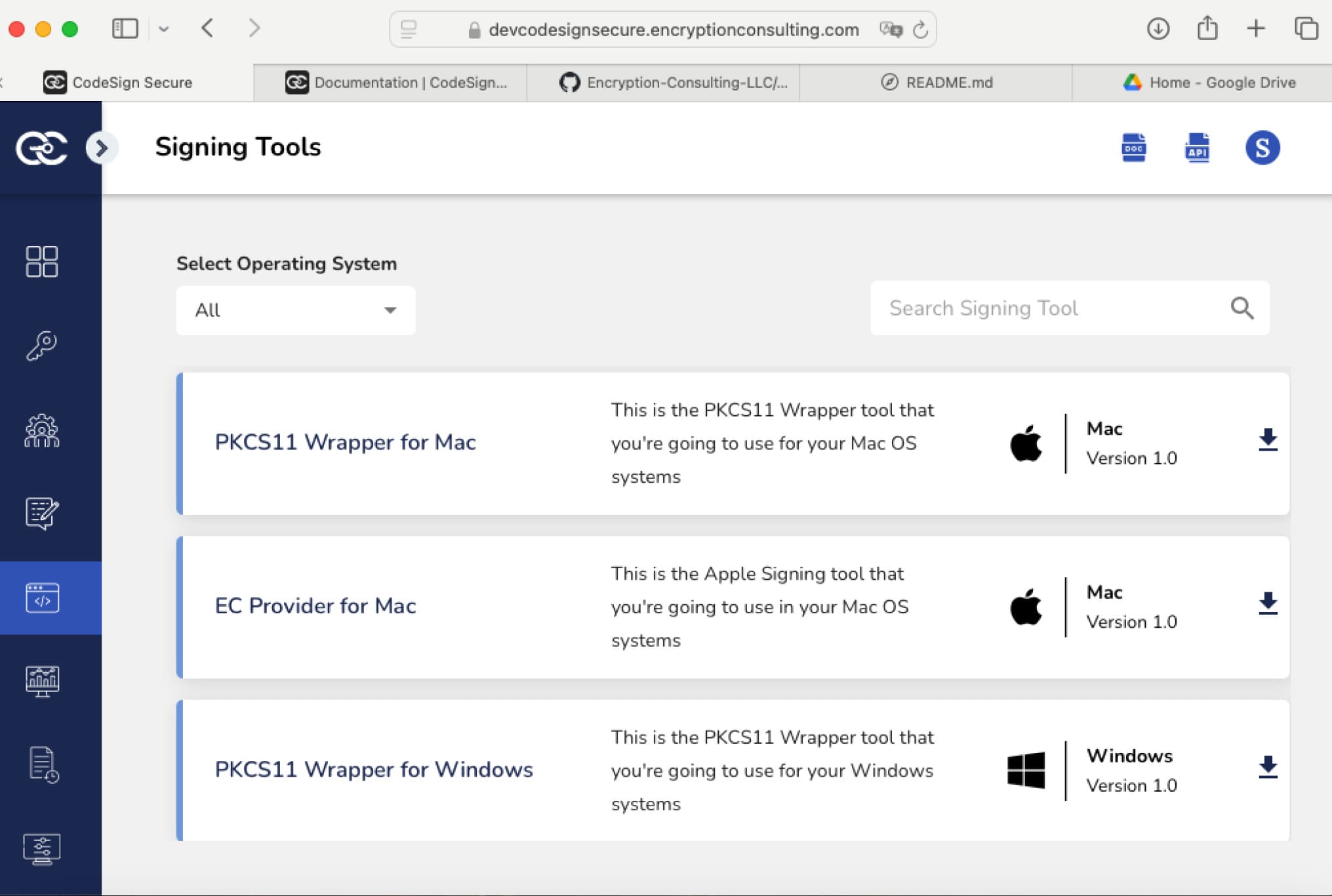
Unzip the file and transfer the unzipped file to the Applications folder. From here, run the ECCssProvider application.
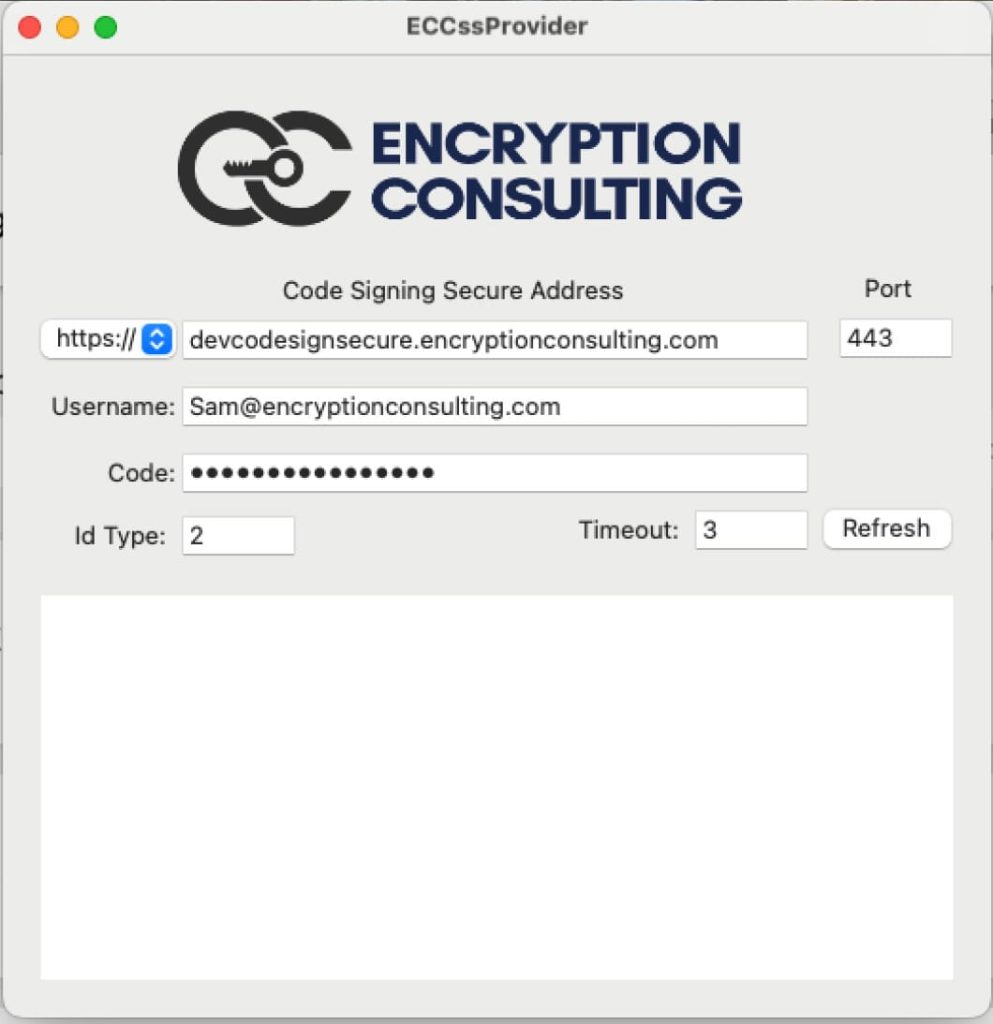
Ensure you have your CodeSign Secure URL, Username, and code entered into the application, and then select refresh.
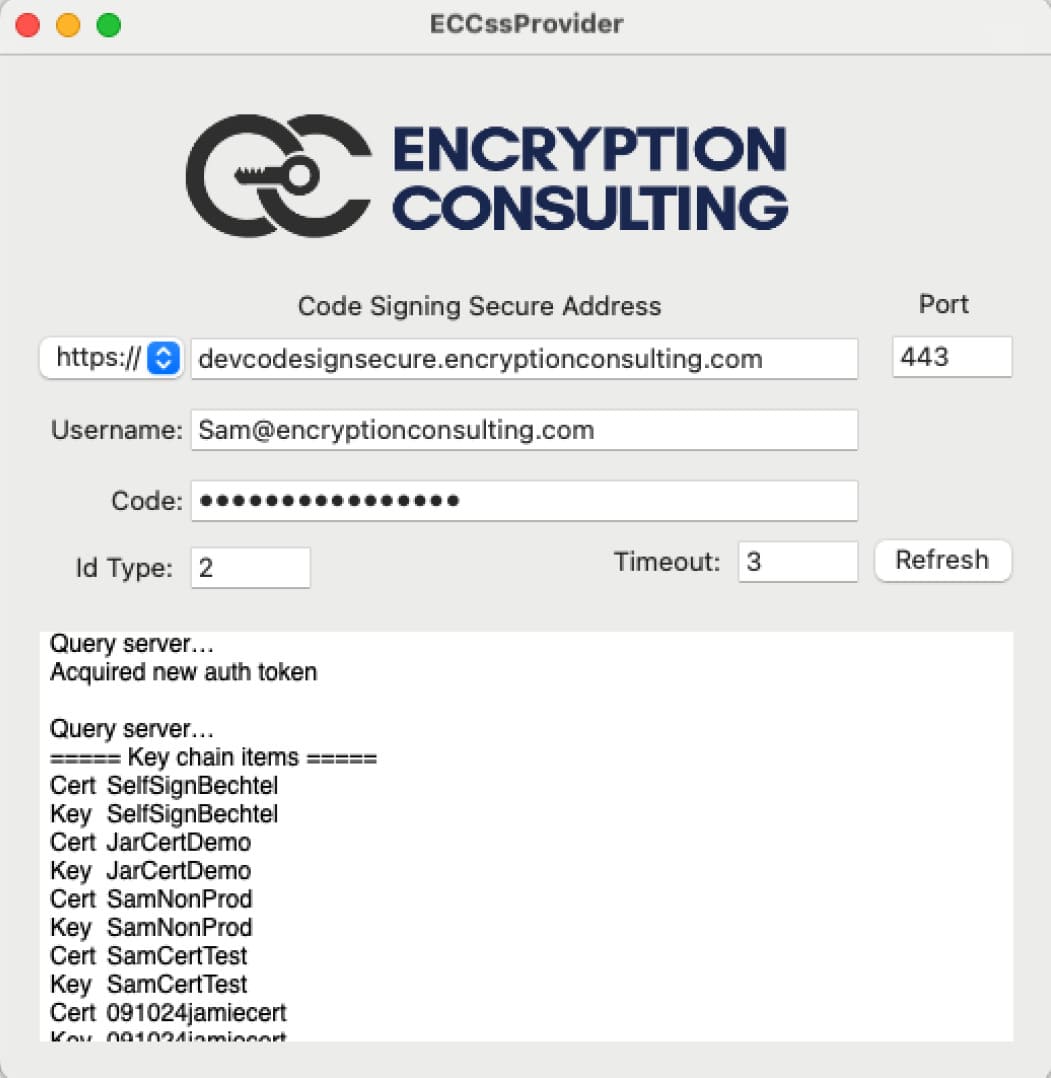
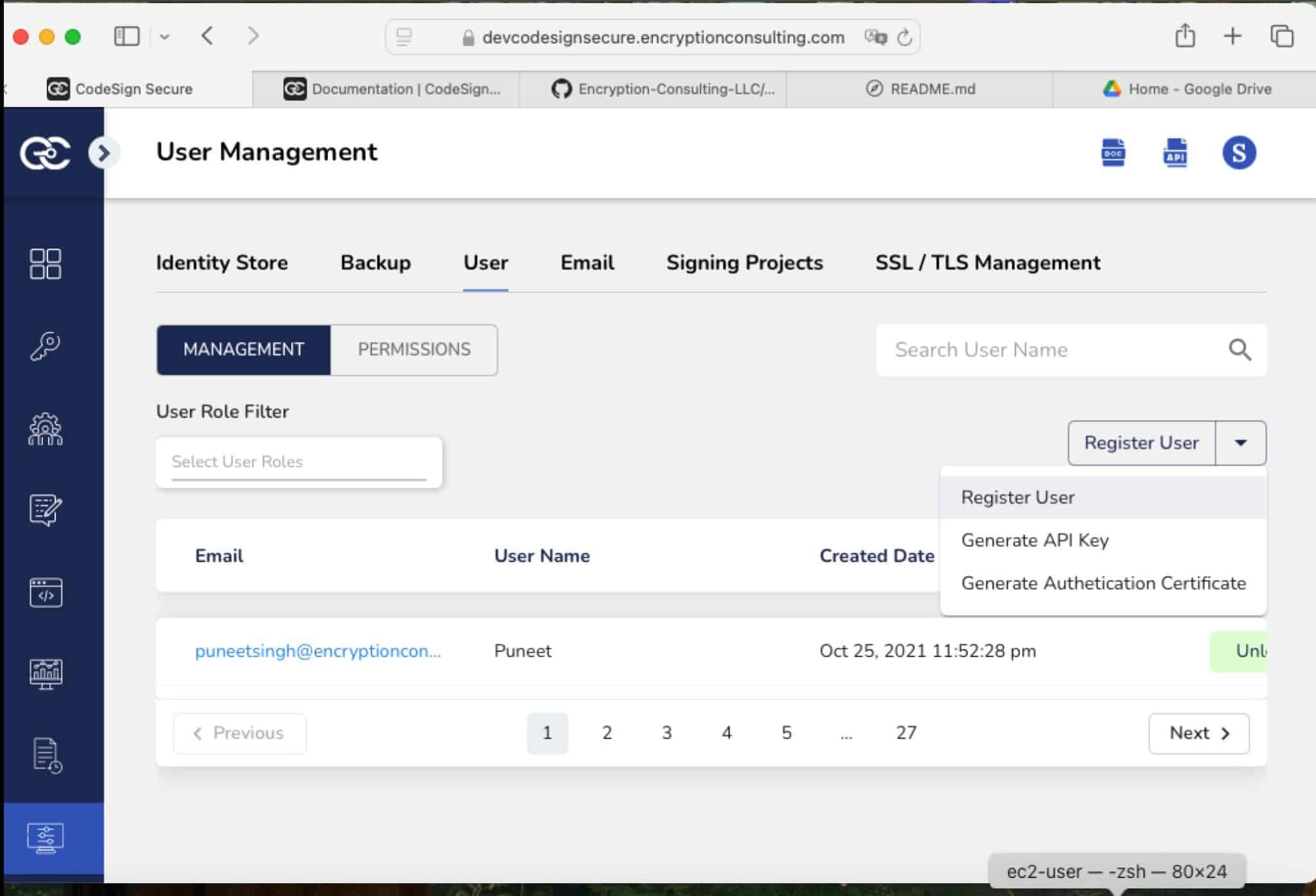
The Page should now show the different certificates you have access to for signing. Now, we must set up the P12 certificate for access to signing on the server. First, go to the CodeSign Secure Webpage and select the settings section. From here, select “User”. Finally, in the drop-down menu on the right, select “Generate Authentication Certificate”.
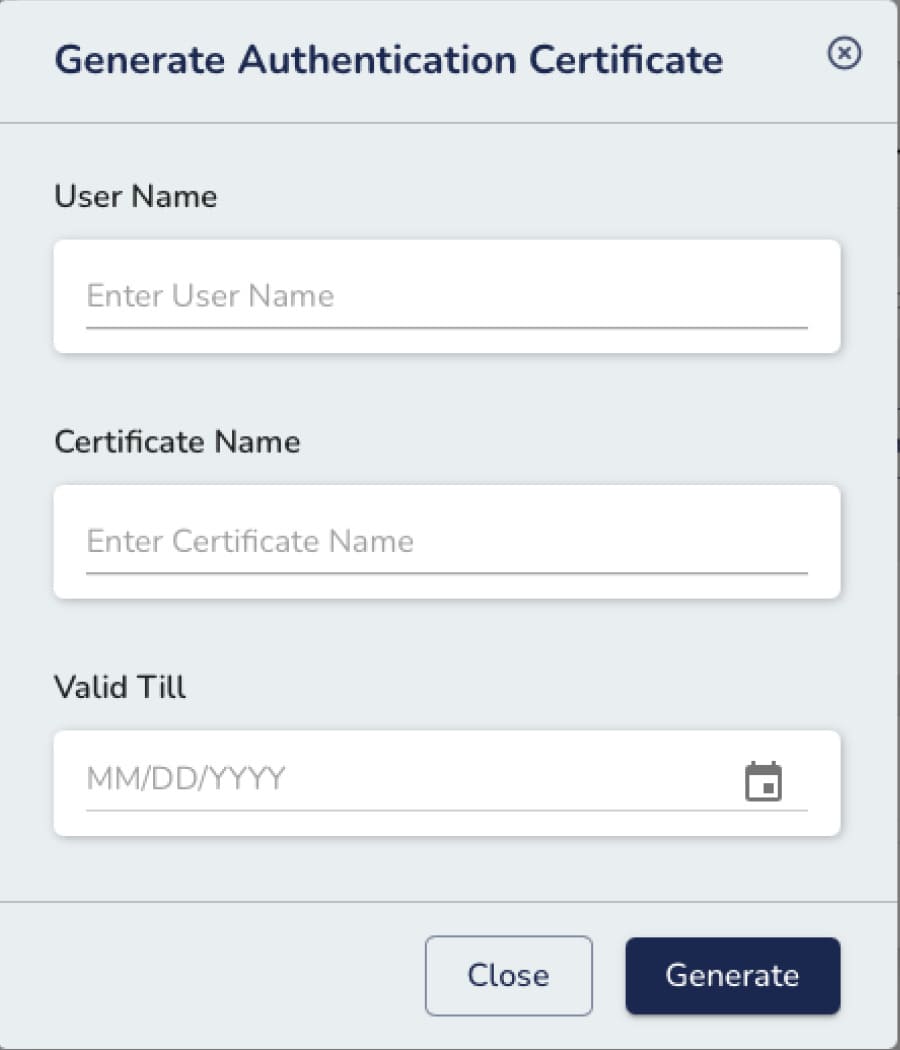
Enter the Certificate Name, UserName, and Expiration Date of the P12 certificate, then select the “Generate” option. A p12 certificate should be generated and downloaded to your machine. Save the password of the certificate as well as the certificate itself.
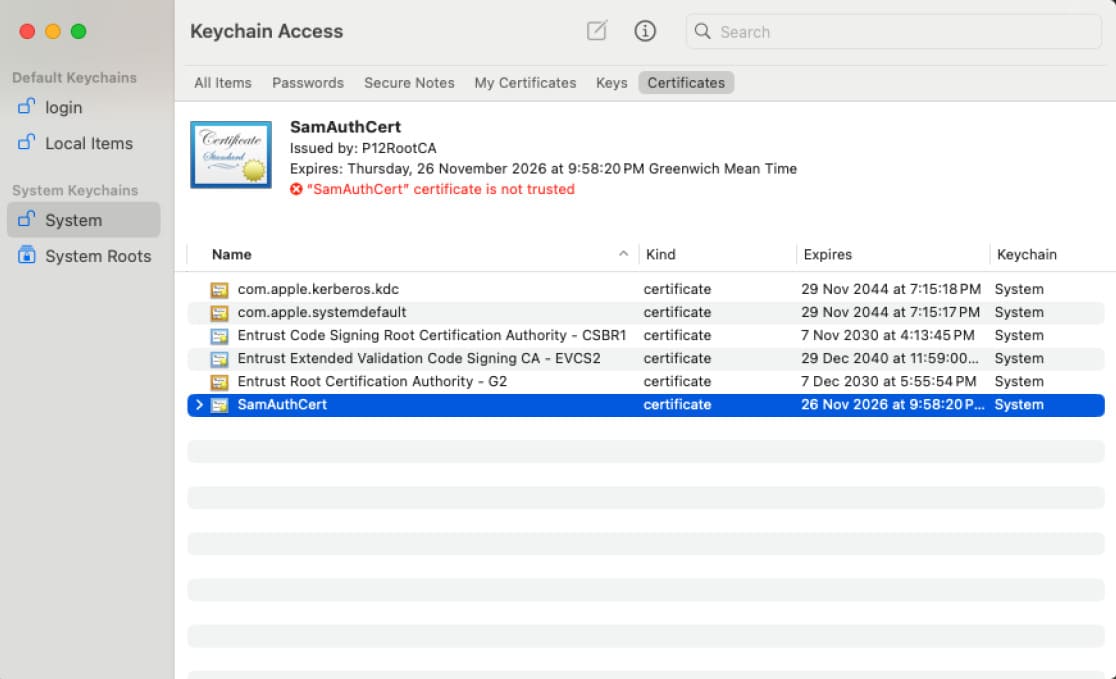
Double-click your newly downloaded P12 certificate and open it with the application “Key Chain Access.” It should prompt you for the administrator password and the certificate password, which will put the certificate in your System keychain.
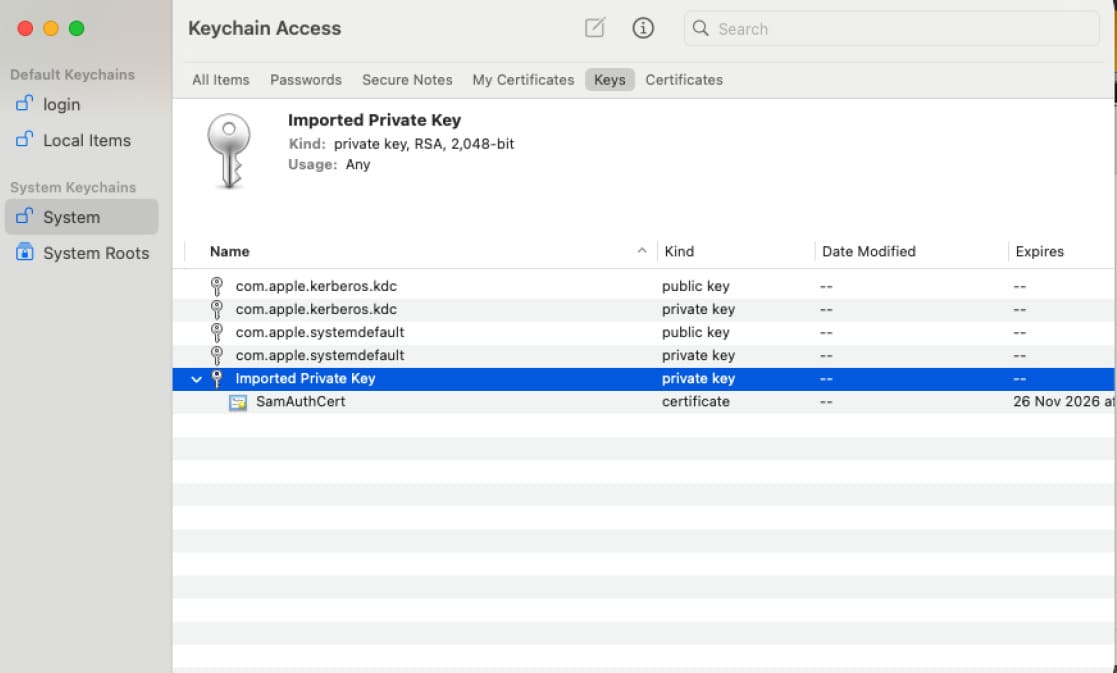
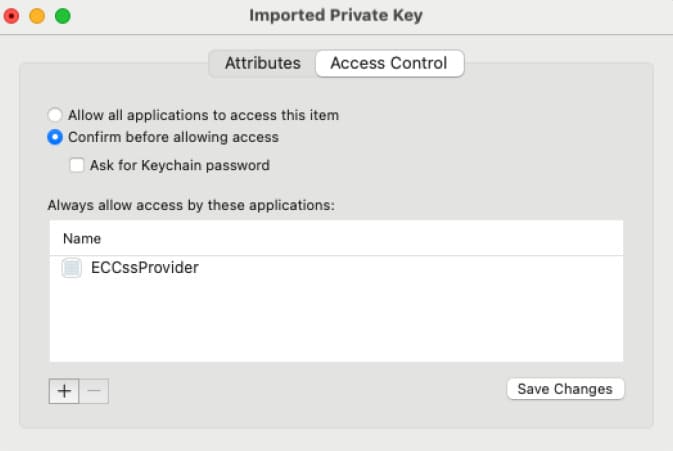
After putting the authentication certificate into your key access chain, open the key itself. Go to Certificates under System, and it should be in the drop-down of the authentication certificate. Right-click it and select get info. From there, select access control and allow access to the certificate using the ECCssProvider.app application. You will likely need to restart your machine to see that the permission actually changes.
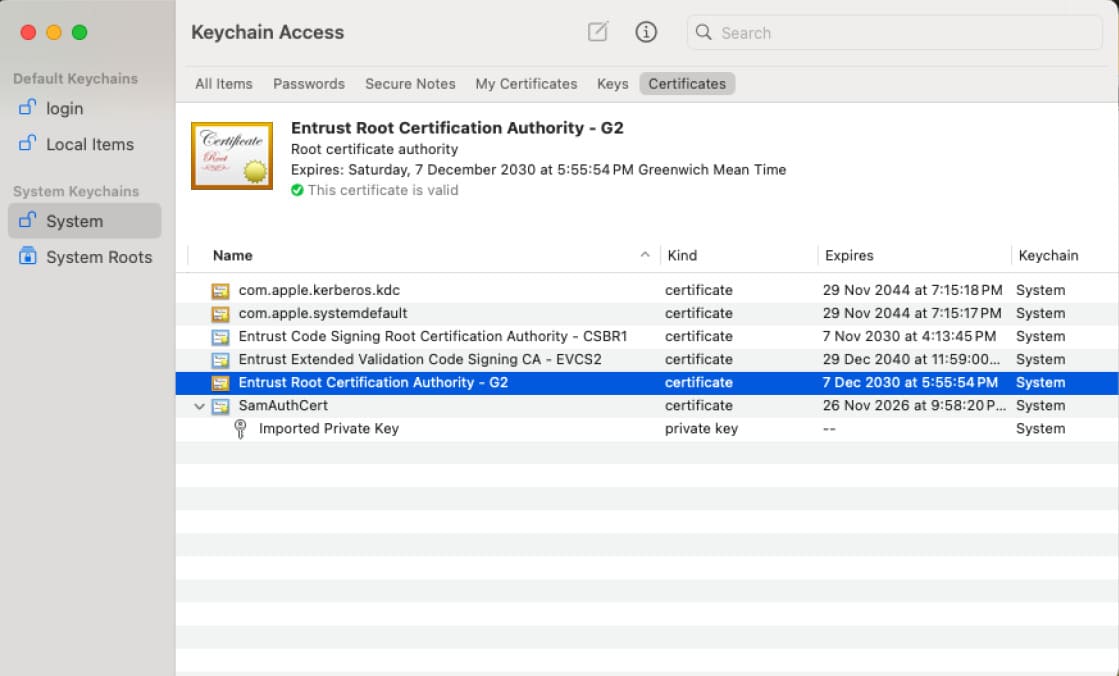
Next, ensure you have the full certification path of the certificate you will be signing within your Keychain Access. Mac devices tend not to start with the known Certification chains like Windows machines do, so if you are using an OV/EV certificate for signing, you must upload that entire certification chain.
Now, we need to run the following command: /Applications/ECCssProvider.app/Contents/macOS/ECCssProvider -–batch -–tlsclient <Auth Cert Name>. This command will set the authentication certificate we uploaded as the TLS authentication certificate when connecting to the CodeSign Secure server.

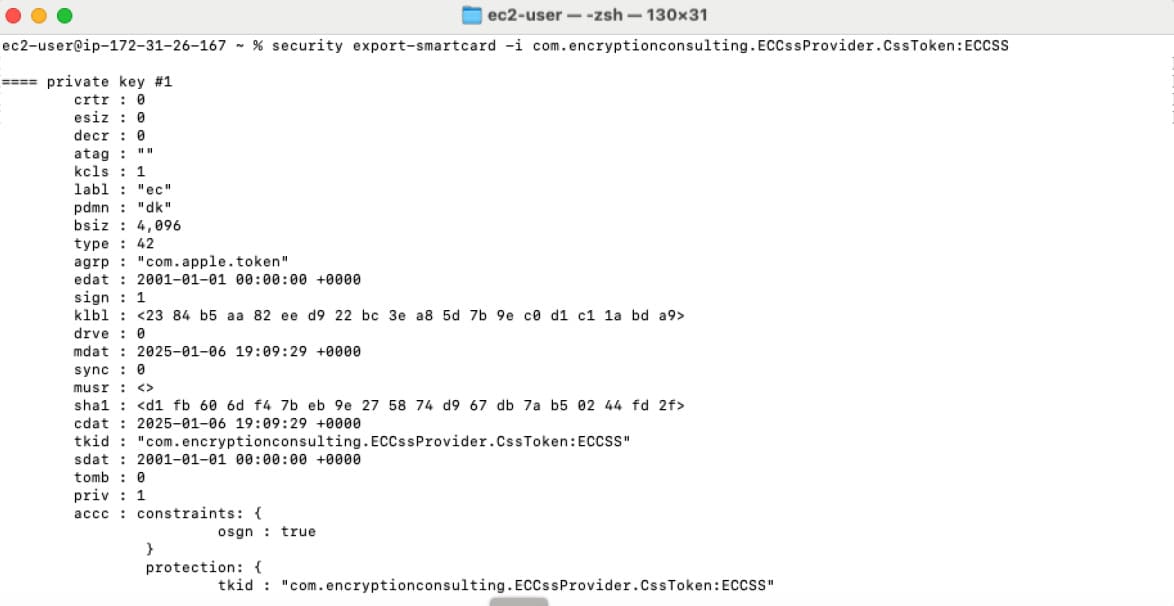
Our next command is security export-smartcard -i com.encryptionconsulting.ECCssProvider.CssToken:ECCSS. This command pulls up all of the certificates listed in the ECCssProvider GUI and details about those certificates. The important detail we need is the SHA1 hash of that certificate. We will use that hash to determine which certificate we are signing with. The certificates are in the same number order as they appear in the GUI.
Finally, we run our codesign command: codesign -f -s <Hash of the Certificate for signing> <Application or file to be signed>. The -f flag is for overwriting old signatures on files, and the -s flag is to specify what we are signing. Then, we provide the hash of the certificate we are using and the path to the file to be signed.
Verification
After signing, verify the signature was applied correctly before distributing the file. Run:
codesign --verify --verbose <path to signed file>
A successful signature reports “valid on disk” and “satisfies its Designated Requirement.” To also confirm the file will pass Gatekeeper’s assessment on another machine, run:
spctl --assess --verbose <path to signed file>
This reports whether Gatekeeper will accept the file based on its signature and, for notarized apps, its notarization ticket.
Common Errors
| Error | Likely Cause | Fix |
|---|---|---|
| codesign reports the identity is untrusted | Full OV/EV certificate chain wasn’t imported into Keychain Access | Import all intermediate and root certificates for the signing certificate, not just the leaf certificate |
| ECCssProvider isn’t listed as an allowed application for the key | Access control for the imported P12 certificate wasn’t updated to allow ECCssProvider.app | Re-check Get Info > Access Control on the certificate in Keychain Access, then restart the machine |
| Wrong certificate gets used for signing | Certificate order in the GUI doesn’t match the assumed SHA-1 hash | Re-run security export-smartcard immediately before signing to confirm the current hash |
CI/CD Use and Cleanup
For repeated signing on a build machine, script the sign-then-verify sequence together so a build fails immediately if verification doesn’t pass, rather than shipping an unverified artifact. Since the private key stays in CodeSign Secure’s HSM, there’s no signing key to remove from the build agent afterward; the only credential present locally is the P12 authentication certificate used to connect to the server, which should be removed from Keychain Access if the build agent is shared or decommissioned.
Frequently Asked Questions
Why does macOS require importing the full certificate chain when Windows doesn’t?
Windows ships with many common public CA root and intermediate certificates pre-trusted in its certificate store. macOS’s Keychain doesn’t pre-trust the same set for code signing purposes, so an OV/EV certificate chain that “just works” on Windows needs its intermediates manually imported into Keychain Access on macOS.
Does codesign –verify confirm the app will pass Gatekeeper?
Not entirely. codesign –verify confirms the signature itself is valid and untampered. spctl –assess checks the broader Gatekeeper policy, including notarization status, which is a separate requirement for apps distributed outside the Mac App Store.
Conclusion
As you can see, setup for this Apple Signing is very simple, especially if you have set up different types of signing with CodeSign Secure in the past. Our Apple CSP can sign any type of Apple file, including .app, .dmg, .pkg, .ipa, and .mpkg files. More detailed documentation can be found in the documentation section of the CodeSign Secure webpage. If you have any questions, wish to see a Demo, or start a POC, please reach out to [email protected] or www.encryptionconsulting.com.