
- Quick Answer: How Do You Upgrade a PED-Based Luna Network HSM?
- Why HSM Firmware Upgrades Matter
- Pre-Requisite Tasks
- Upgrade Path Planning
- Upgrading from a Network Connection
- Upgrading from a Direct Connection (Crossover Cable)
- Post-Upgrade Tasks
- Failure-Mode Guidance
- Ongoing HSM Operational Best Practices
- Conclusion
- Frequently Asked Questions
Hardware Security Modules (HSMs) are critical but maintenance-intensive security infrastructure. Upgrading the software and firmware of a PED-based Luna Network HSM is a routine but high-risk task: an interrupted or incorrectly sequenced upgrade can render the module inoperable and disrupt any connected Certificate Authority, PKI, or application until the issue is resolved. The recommended action: verify the upgrade path before starting, ensure a current and tested HSM backup exists, confirm the HA cluster is operational, publish an updated CRL from the connected CA, and schedule the upgrade during a low-impact maintenance window with a rollback plan in place.
Quick Answer: How Do You Upgrade a PED-Based Luna Network HSM?
A Luna Network HSM upgrade has three phases: pre-upgrade tasks (verify HA cluster, take HSM backup, publish CRL from connected CA, confirm upgrade path, prepare rollback plan); the upgrade itself (transfer the .spkg package to the HSM, verify it with the authorization code, apply the software update, reboot, then run the firmware upgrade as SO); and post-upgrade validation (verify versions with hsm show, publish a fresh CRL, confirm the CA is operational). If the HSM is not accessible over the network, a crossover cable and static IP configuration on both the HSM and the client workstation are required. For related HSM deployment context, see HSMs and Key Management.
Why HSM Firmware Upgrades Matter
Unlike a standard server patch, an HSM firmware upgrade modifies the low-level firmware running inside the FIPS-validated hardware boundary. The risks are higher than routine software patching:
- Upgrade failure risk: an interrupted upgrade or incorrect version sequence can render the module inoperable or force it to factory state, erasing all key material. Without a tested backup, recovery is impossible and the PKI or application keys must be re-generated from scratch.
- Integrated system impact: CAs, code signing pipelines, TLS certificate infrastructure, and any application using the HSM via PKCS#11 will stop functioning during an HSM outage. Planning and communication are required.
- Sequential upgrade requirement: Luna Network HSMs require sequential version upgrades; jumping from a very old version to the latest in a single step is not supported. The correct upgrade path must be determined from the vendor’s release notes before any upgrade begins.
Pre-Requisite Tasks
These tasks must be completed before updating the Luna Network HSM software and firmware, especially if the HSM is connected to a production environment. This example assumes the HSM is connected to an Issuing Certificate Authority (CA).
- Schedule a low-impact maintenance window: confirm with all dependent teams that a brief period of HSM or CA non-availability is acceptable during the upgrade window.
- Verify the HA cluster: ensure both HSMs in the HA cluster are operational. If one upgrade fails, the partner HSM continues serving CA and application operations while the issue is diagnosed.
- Take and verify an HSM backup: create a current HSM backup and restore it to a secondary HSM to confirm the backup is valid. An untested backup is equivalent to no backup.
- Determine the upgrade path: confirm the exact version sequence required from the current firmware and software version to the target version. Sequential upgrades are mandatory; skipping versions causes failures.
- Publish an extended CRL from the connected CA: extend and publish the Certificate Revocation List (CRL) before the upgrade so it remains valid throughout the maintenance window. The CRL steps for Microsoft PKI are detailed below.
- Prepare the file transfer path: confirm whether the upgrade package can be transferred over the network (pscp/SCP) or whether a crossover cable and direct connection are required.
- Prepare a rollback plan: document the steps to restore the HSM from backup if the upgrade fails.
Publishing a CRL from Microsoft PKI before the upgrade:
- Verify the Certificate Authority is running by checking PKIView.msc.
- Open the Certificate Authority from PKIView.msc.
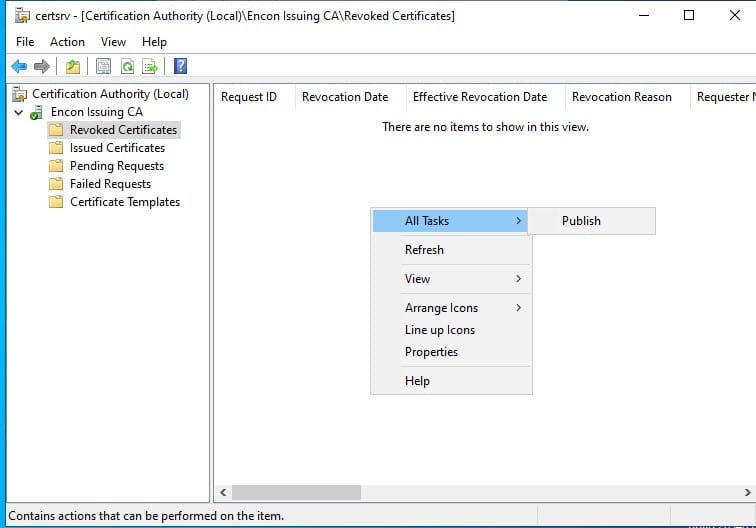
- Navigate to the Revoked Certificates folder.
-
Right-click the Revoked Certificates folder and select All Tasks then Publish.
-
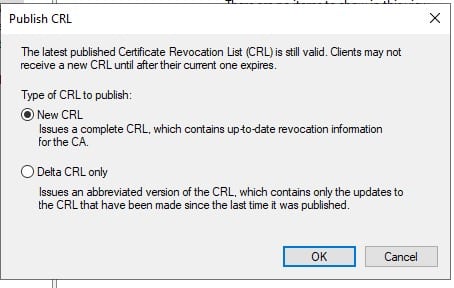
Select CRL and Publish.
-
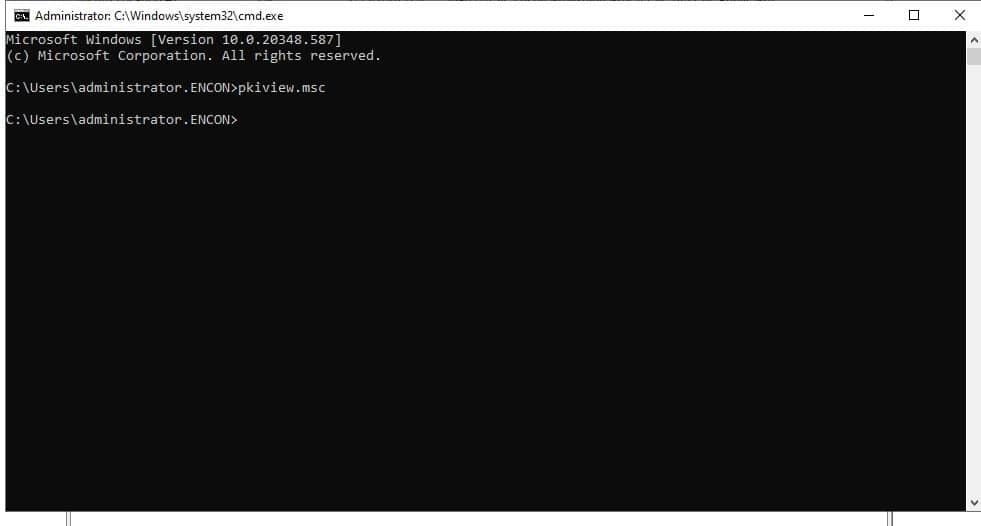
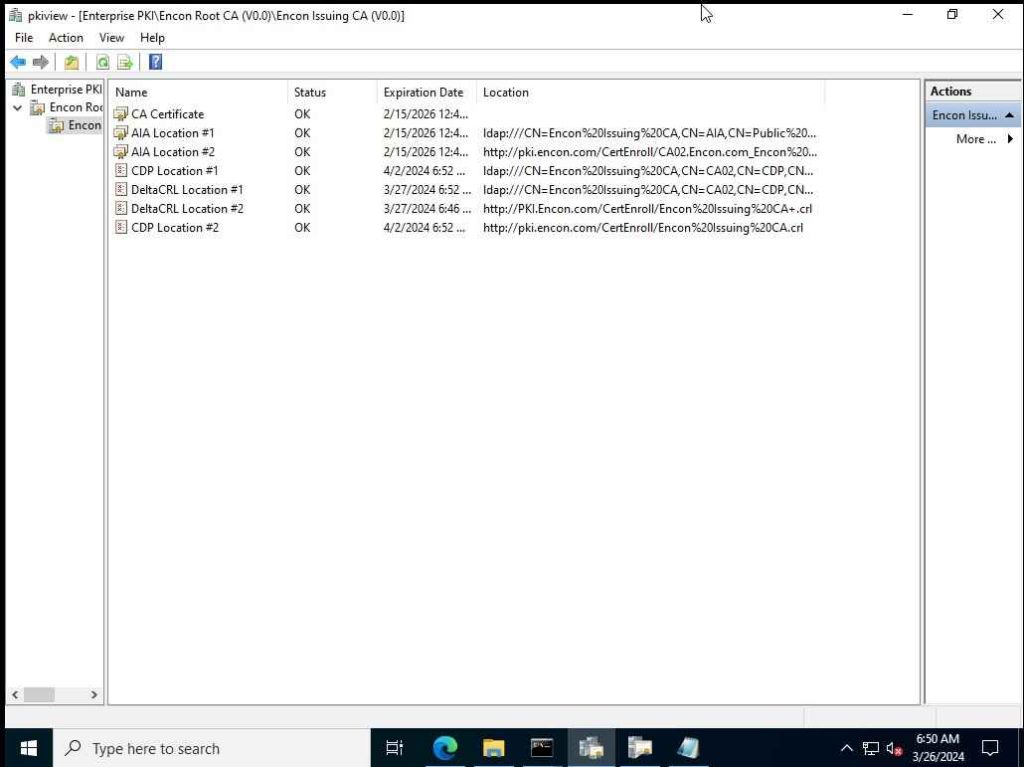
To verify the CRL has been renewed correctly, open a command prompt, run PKIView.msc, expand the Issuing CA tab, and check the CDP point expiry date.
Also ensure a system is available to transfer the software package to the HSM (with necessary firewall rules in place), or that a team member has physical access to the HSM with a crossover cable for direct-connection transfer.
Upgrade Path Planning
Before upgrading, determine the correct version sequence. Luna Network HSMs require sequential upgrades: you cannot jump from version 6.0 directly to version 7.7. You must upgrade from 6.0 to 6.5, then to 7.0, and then to 7.7. The exact path depends on the current version. Consult the vendor’s release notes and upgrade guide for the specific sequence required from your installed version.
Additionally prepare a rollback plan: document the steps to restore the HSM from its pre-upgrade backup if the software upgrade fails. A Disaster Recovery plan must exist before the upgrade; if the upgrade causes a major issue, the affected HSM must be recovered from backup while the HA partner continues production operations.
Upgrading from a Network Connection
Use this procedure if the network is configured for HSM access and a client system can reach the HSM to transfer upgrade files. If direct connection is required, use the crossover cable procedure in the next section.
- Transfer the .spkg update file to the HSM:
C:\Program Files\SafeNet\LunaClient>: pscp lunasa_update-7.7.0-317.spkg admin@<HSM IP>: - Log into the HSM via SSH:
C:\Program Files\SafeNet\LunaClient>: ssh admin@<HSM IP> - Log in as the HSM Security Officer (SO):
lunash>: hsm login - Follow the prompts on the PED to authenticate as SO using the blue PED Key.
- Confirm the package was successfully transferred:
lunash>: package listfile - Verify the package integrity using the authorization code from the .auth file:
lunash>: package verify lunasa_update-7.7.0-317.spkg -a <authentication code string> - Apply the software update:
lunash>: package update lunasa_update-7.7.0-317.spkg -a <authentication code string> - If the HSM does not automatically reboot after the update:
lunash>: sysconf appliance reboot - SSH back into the HSM after reboot:
C:\Program Files\SafeNet\LunaClient>: ssh admin@<HSM IP> - Upgrade the firmware:
lunash>: hsm firmware upgrade - Verify the upgrade is complete:
lunash>: hsm show
Upgrading from a Direct Connection (Crossover Cable)
Use this procedure if the HSM is not accessible over the network. A crossover cable connected to an ethernet port on the HSM allows direct file transfer from a workstation.
-
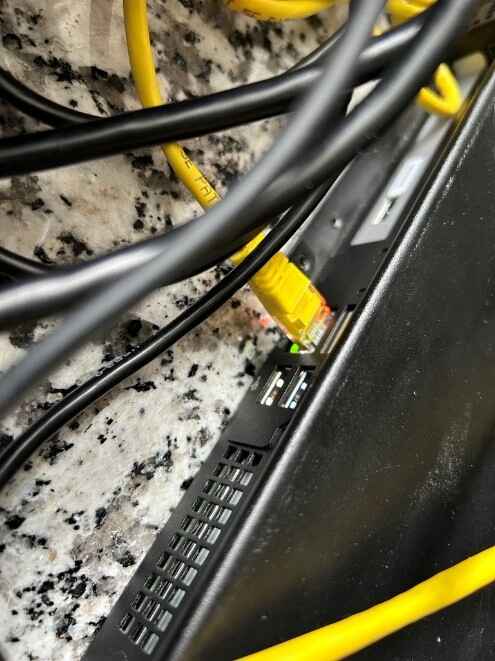
Connect the crossover cable to any eth port on the HSM.
-
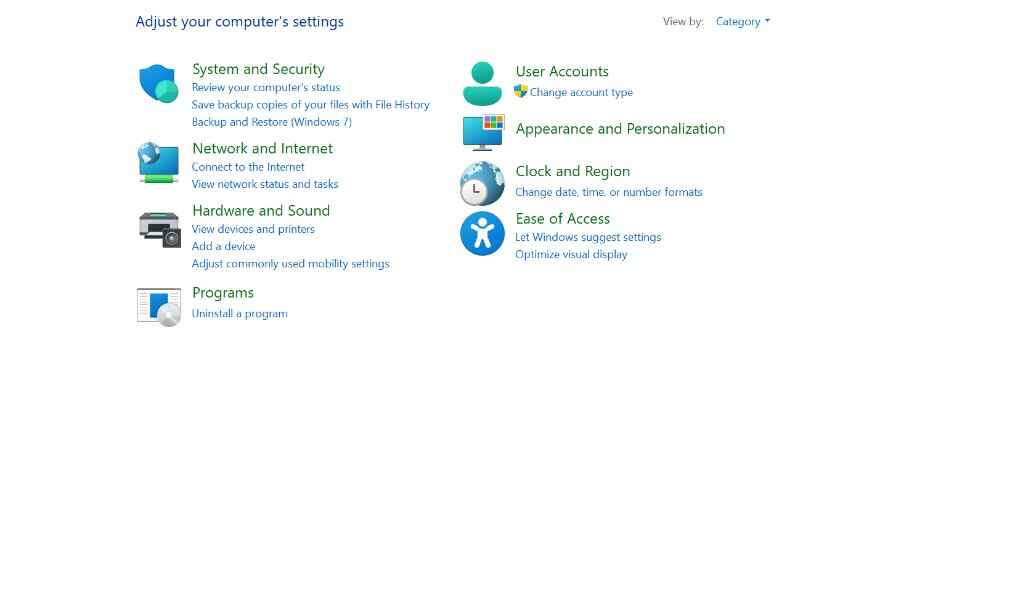
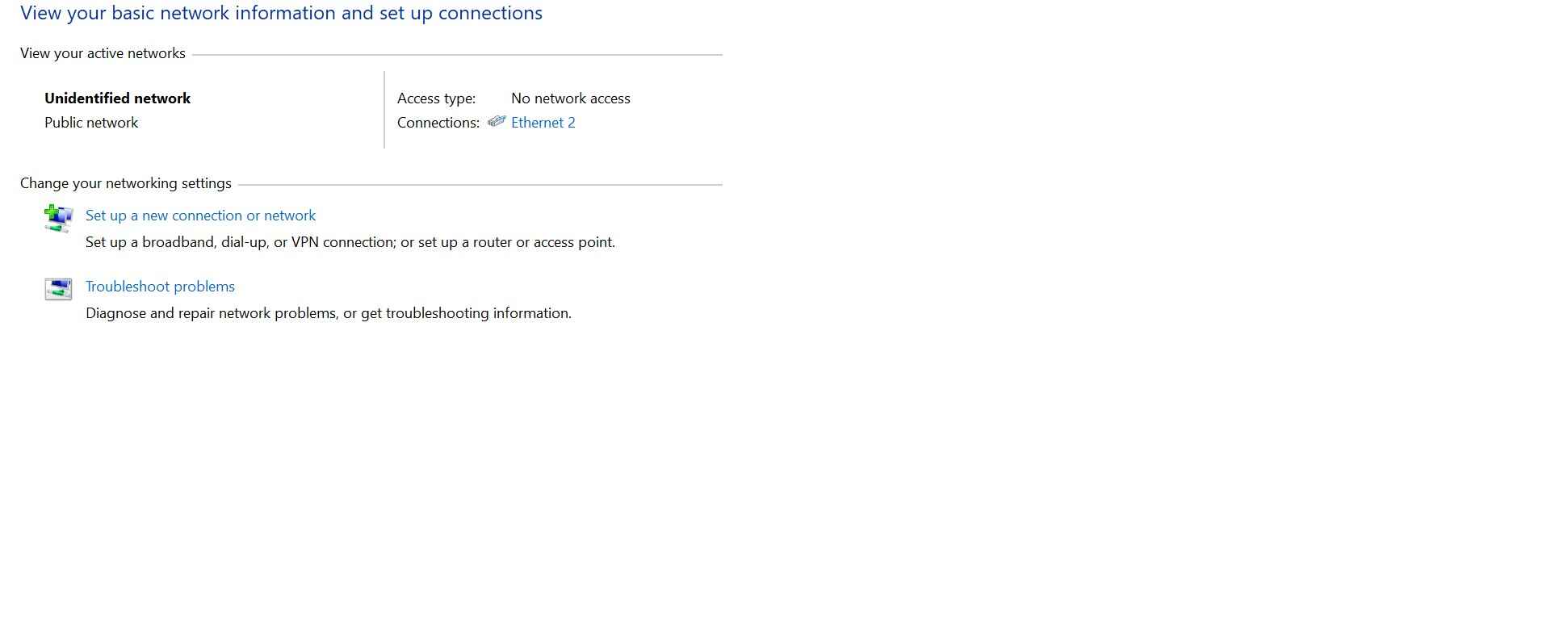
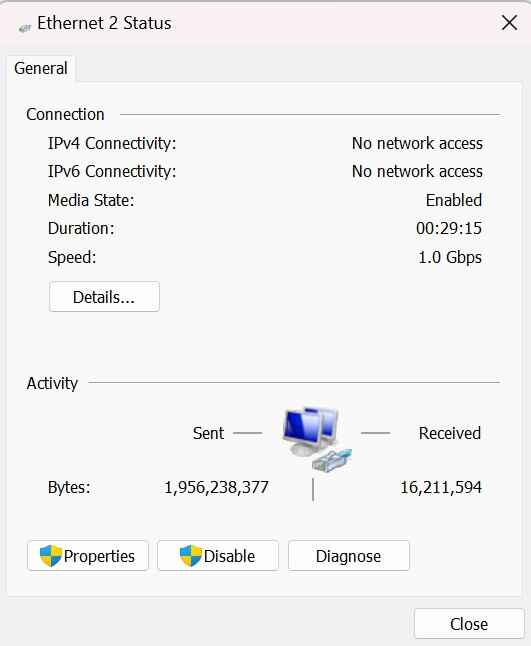
Configure a static IP on the workstation: Control Panel > Network and Internet > Network and Sharing Center > Ethernet Connection > Properties > Internet Protocol Version 4 (TCP/IPv4) > Properties. Set a static IP on the same subnet as the target HSM IP.

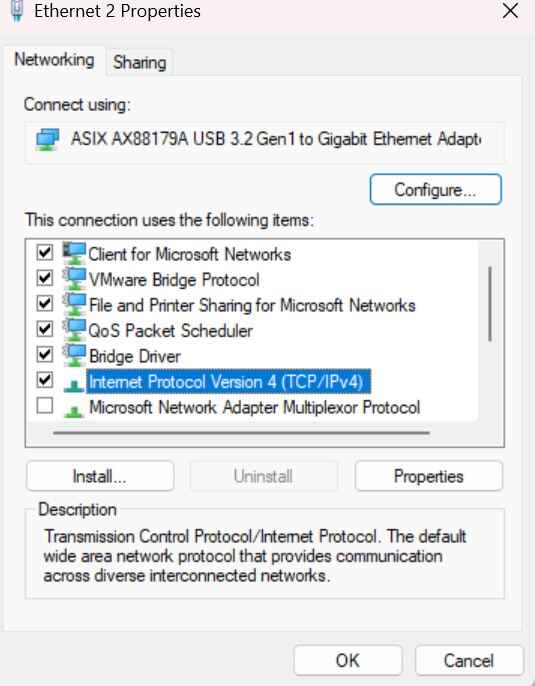
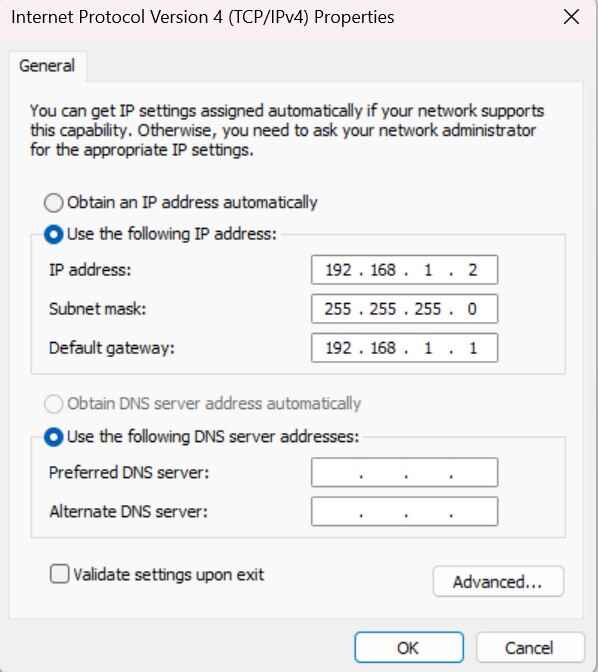
-
Connect serially to the HSM as admin.
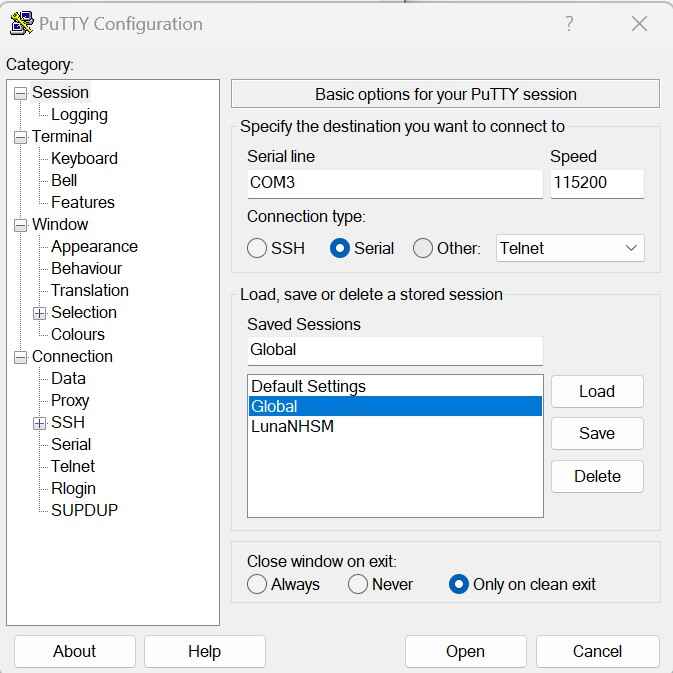
- Configure the HSM IP address on the same subnet:
lunash>: network interface static -device eth0 -ip 192.168.1.3 -netmask 255.255.255.0 -gateway 192.168.1.1 - Reboot the HSM:
lunash>: sysconf appliance reboot - Download the Luna client software package from the vendor portal.
-
Using 7zip, extract the downloaded file. You should see four files including the .spkg update file and the .auth authorization file.
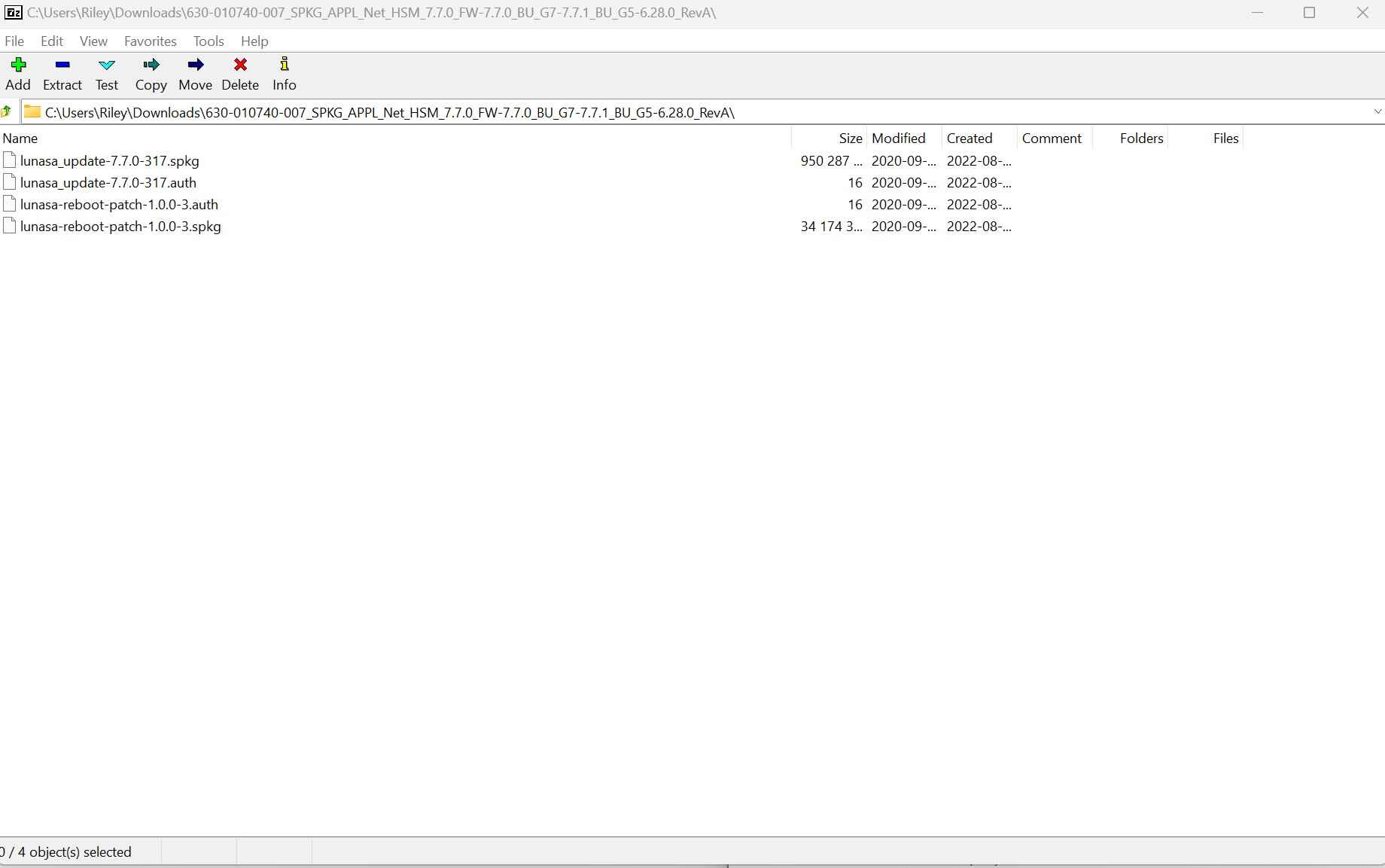
- Open an Administrator Command Prompt and navigate to the LunaClient directory:
C:\>: cd C:\Program Files\SafeNet\LunaClient - Transfer the .spkg update file to the HSM:
C:\Program Files\SafeNet\LunaClient>: pscp lunasa_update-7.7.0-317.spkg [email protected]: -
Log back into the HSM serially as admin.
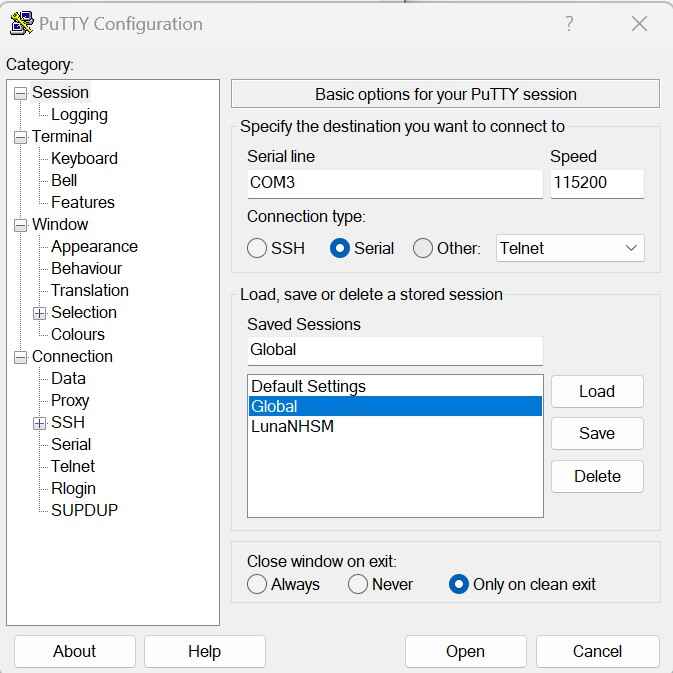
- Log in as the HSM Security Officer (SO):
lunash:> hsm login - Follow the PED prompts to authenticate as SO using the blue PED Key.
- Confirm the package transferred successfully:
lunash:> package listfile - Verify the package integrity:
lunash:> package verify lunasa_update-7.7.0-317.spkg -a <authentication code string> - Apply the software update:
lunash:> package update lunasa_update-7.7.0-317.spkg -a <authentication code string> - If the HSM does not reboot automatically:
lunash:> sysconf appliance reboot - Log back into the HSM as admin and authenticate as SO:
lunash>: hsm login - Follow the PED prompts to authenticate as SO.
- Upgrade the firmware:
lunash:> hsm firmware upgrade - Verify the upgrade:
lunash:> hsm show
Post-Upgrade Tasks
Once the HSM has been upgraded, the following post-upgrade steps are required:
- Verify the upgrade: SSH into the HSM and run
lunash>: hsm show. Confirm both the software version and firmware version reflect the expected target values. - Publish a new CRL from the connected CA: repeat the CRL publication steps from the pre-upgrade phase to refresh the CRL distribution point after the upgrade.
- Verify CA operational status: open PKIView.msc, expand the Issuing CA, and confirm the CRL CDP expiry date and CA status are correct.
- Verify the Certificate Authority is running by checking PKIView.msc.
- Open the Certificate Authority from PKIView.msc.
- Navigate to the Revoked Certificates folder.
-
Right-click and select All Tasks then Publish.
-
Select CRL and Publish.
-
Verify the CRL CDP expiry date in PKIView.msc.
Failure-Mode Guidance
- Upgrade failure mid-process: if the software update fails or the HSM becomes unresponsive during the upgrade, do not power cycle unless instructed by the vendor. If the module reaches factory state, key material is lost and must be restored from the pre-upgrade backup. Ensure the HA partner is operational and capable of handling production traffic during recovery.
- Incorrect upgrade path: attempting to upgrade more than one major version in a single step may fail or produce an inconsistent state. Always determine the exact sequential path before starting.
- CRL expiry during extended maintenance: if the upgrade takes longer than expected, an unpublished or expiring CRL causes relying parties to fail certificate validation. Publish an extended CRL with adequate validity before starting; monitor CRL expiry continuously.
- Package verification failure: if the package verify command fails, do not proceed with the update. Re-download the package from the vendor portal and verify again. A corrupted upgrade package applied to the HSM can cause irreversible damage.
- PED authentication unavailable: if the SO PED Key or PED device is unavailable at the time of the upgrade, SO login cannot be completed and the upgrade cannot proceed. Ensure the correct PED Key custodian and a working PED device are available before scheduling the upgrade.
Ongoing HSM Operational Best Practices
Along with periodic upgrade tasks, the following ongoing practices are essential for a well-managed Luna HSM environment:
- Daily monitoring: confirm the HSM is operational and serving connected applications; alert on any loss of connectivity or cluster health degradation.
- Version currency: track the latest software and firmware releases from the vendor and maintain a tested upgrade plan so the environment can be updated without emergency decisions.
- Annual backup restoration test: test the restoration of the HSM backup to a secondary appliance at least annually to confirm the backup is valid and the recovery procedure works before an incident requires it.
- Certificate lifecycle integration: use CertSecure Manager to track and automate renewal of all certificates signed by HSM-backed CAs, preventing expiry-driven outages independent of the HSM upgrade schedule.
- HSM support engagement: for organizations without dedicated HSM expertise, Encryption Consulting’s HSM services provide upgrade planning, DR planning, application onboarding, and monitoring support.
Conclusion
Upgrading a PED-based Luna Network HSM is a manageable process when the pre-requisite tasks are completed properly: backup and verify, confirm the HA cluster, determine the correct upgrade path, publish an extended CRL, and prepare a rollback plan. The upgrade itself follows a consistent pattern regardless of the version target: transfer the package, verify it, apply the software update, reboot, authenticate as SO via PED, and upgrade the firmware. Post-upgrade, verify the version, publish a new CRL, and confirm the CA is fully operational. For organizations needing HSM upgrade planning, DR design, or application onboarding support, visit Encryption Consulting’s HSM Design and Implementation services.
Frequently Asked Questions
Why is HSM firmware upgrade more risky than a standard server patch?
An HSM firmware upgrade modifies firmware inside the FIPS-validated hardware boundary. An interrupted or incorrectly sequenced upgrade can render the module inoperable or force it to factory state, erasing all key material not backed up externally. Pre-upgrade tasks (backup, HA cluster verification, CRL publication, rollback planning) are mandatory, not optional.
What is the correct upgrade path for a Luna Network HSM?
Sequential version upgrades are required; you cannot jump from a very old version to the latest in a single step. For example, upgrading from version 6.0 requires upgrading first to 6.5, then 7.0, then the target version. Consult the vendor’s release notes for the exact required sequence from your installed version.
What pre-requisite tasks must be completed before upgrading a Luna HSM connected to a CA?
Verify the HA cluster is operational; take and verify an HSM backup; publish and extend the CRL from the connected CA; determine the sequential upgrade path; confirm the software package transfer path (network or crossover cable); notify dependent teams; have a rollback plan in place.
How do I upgrade the Luna HSM firmware after the software upgrade?
After the software upgrade completes and the HSM reboots, SSH in as admin, log in as SO using the blue PED Key, and run: lunash:> hsm firmware upgrade. Follow PED prompts. After completion, verify with: lunash:> hsm show. Confirm both software and firmware versions reflect the expected values.
What should I do after the upgrade?
Verify versions with hsm show; publish a new CRL from the connected CA; verify CA operational status in PKIView.msc; notify dependent teams; update the internal change log with the new version, upgrade date, and operator details; resume monitoring.
What happens if the HSM upgrade fails?
Do not power cycle while an upgrade is in progress unless instructed by the vendor. If the module reaches factory state, restore from the pre-upgrade backup. If the HA partner is operational, production services continue on the surviving appliance while the failed upgrade is diagnosed. Contact vendor support immediately if the module is unresponsive after a failed upgrade.
- Quick Answer: How Do You Upgrade a PED-Based Luna Network HSM?
- Why HSM Firmware Upgrades Matter
- Pre-Requisite Tasks
- Upgrade Path Planning
- Upgrading from a Network Connection
- Upgrading from a Direct Connection (Crossover Cable)
- Post-Upgrade Tasks
- Failure-Mode Guidance
- Ongoing HSM Operational Best Practices
- Conclusion
- Frequently Asked Questions